Microsoft Paint – Basic 6 Basic Technology Lesson Note (First Term)
Download Lesson NoteLesson note at a glance
- Subject
- Basic Technology
- Class
- Basic 6
- Term
- First Term
- Topic
- Microsoft Paint
- Order
- Topic 15 of 24 this term
- Reading time
- 2 min
Learning Objectives
By the end of the lesson, pupils should be able to:
- Identify tools on the toolbar
- Draw and paint shapes
Content
Opening Microsoft Paint
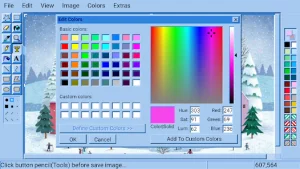
- Click Start menu
- Type “Paint” in search
- Click on Paint icon OR
- Start → All Programs → Accessories → Paint
Parts of Microsoft Paint Window
- Title Bar – Shows file name
- Quick Access Toolbar – Save, Undo, Redo buttons
- Ribbon/Menu Bar – Contains tabs (Home, View)
- Drawing Area/Canvas – White area for drawing
- Color Palette – Choose colors
- Status Bar – Shows size and position information
Tools on the Toolbar
- Selection Tools
- Select – Choose part of drawing to move or copy
- Crop – Cut out unwanted parts
- Drawing Tools
- Pencil – Draw freehand thin lines
- Brush – Draw freehand thick lines with different styles
- Paint Bucket – Fill areas with color
- Eraser – Remove parts of drawing
- Shape Tools
- Line – Draw straight lines
- Curve – Draw curved lines
- Rectangle – Draw squares and rectangles
- Oval – Draw circles and ovals
- Polygon – Draw many-sided shapes
- Triangle – Draw triangles
- Text Tool
- A (Text) – Add words to your drawing
- Size and Color Tools
- Size – Change thickness of lines
- Color 1 – Main color (left mouse button)
- Color 2 – Background color (right mouse button)
How to Draw Basic Shapes
Drawing a Circle/Oval:
- Click Oval tool
- Click and drag on canvas
- Hold Shift key for perfect circle
Drawing a Rectangle/Square:
- Click Rectangle tool
- Click and drag on canvas
- Hold Shift key for perfect square
Filling Shapes with Color:
- Choose “Fill with color” option in Shapes
- Select shape tool
- Choose color from palette
- Draw shape – it will be filled automatically
OR use Paint Bucket:
- Click Paint Bucket tool
- Choose color
- Click inside the shape
Painting Tips for Beginners
- Use Undo (Ctrl+Z) if you make mistakes
- Save your work regularly (Ctrl+S)
- Start with simple shapes
- Plan your drawing before starting
- Use grid (View → Gridlines) for precise drawing
Activities
- Open Paint and explore all tools
- Draw simple objects (house, tree, sun)
- Practice using different colors
- Create a colorful picture using shapes
- Save and name your artwork
This term's Basic Technology topics
Basic 6 First Term · 24 topics
- The Human Circulatory System: Blood Vessels
- Athletics: Field Event (High Jump)
- Drawing with Computer (Cont’d)
- Drugs
- Volleyball Game
- Microsoft Paint
- Drug Abuse
- Personal Healthcare
- Scratch Programming: The 3S of Scratch
- The Human Reproductive System
- Basketball Game
First Term Basic Technology Lesson Notes for Other Topics

Energy IV
Read the full lesson note.
Energy III
Read the full lesson note.
Energy II
Read the full lesson note.

Energy I
Read the full lesson note.

Movement (Throwing)
Read the full lesson note.

Parts of a Computer
Read the full lesson note.
Non-Living Things
Read the full lesson note.

Moving our Body Parts
Read the full lesson note.
Living Things II
Read the full lesson note.
Movement
Read the full lesson note.
Basic Computer
Read the full lesson note.
Living Things
Read the full lesson note.
Revision of First Term : PHE
Read the full lesson note.

CPU (Central Processing Unit)
Read the full lesson note.
Water II
Read the full lesson note.
Lesson Notes for Other Classes

Basic 1 Lesson Note
The complete lesson note to guide your studies.

Basic 2 Lesson Note
The complete lesson note to guide your studies.
Basic 3 Lesson Note
The complete lesson note to guide your studies.

Basic 4 Lesson Note
The complete lesson note to guide your studies.

Basic 5 Lesson Note
The complete lesson note to guide your studies.
JSS1 Lesson Note
The complete lesson note to guide your studies.