
Word Processing Application – SS1 Digital Technologies Lesson Note (Third Term)
Download this term · ₦1,000Lesson note at a glance
- Subject
- Digital Technologies
- Class
- SS1
- Term
- Third Term
- Topic
- Word Processing Application
- Order
- Topic 1 of 8 this term
- Reading time
- 4 min
Word processing is the use of computer software to create, edit, format and print documents. Common word processors include Microsoft Word, Google Docs and WPS Office. They let you fix mistakes easily, add pictures and tables, and save your work and print it many times. This note covers the main tools, text formatting, editing, saving and printing.
Subject: Digital Technologies
Class: SS1
Behavioural objectives
By the end of the lesson, students should be able to:
- Define word processing and name three common word processors.
- Identify the cursor, scroll bar, status bar and title bar.
- Format text using font, font size, bold, italic, underline and alignment.
- Use bullets, numbering, and cut, copy and paste.
- Explain the difference between Save and Save As, and between portrait and landscape.
What is word processing?
In the old days, if you made a mistake while typing a letter on a typewriter, you had to start the whole page over or use messy white-out fluid. Word processing changed all that.
Definition: Word processing is the use of computer software to create, edit, format and print documents.
Common word processors
- Microsoft Word: The most famous one, used in almost every office.
- Google Docs: A free, online version that lets you work with friends at the same time.
- WPS Office: Very popular on Android phones and tablets.
Why use a word processor?
- You can fix mistakes easily.
- You can add pictures and tables.
- You can save your work and print it many times.
What are the main features of a word processor?
When you open Microsoft Word or Google Docs, you see a lot of buttons at the top. This area is often called the Ribbon or the Toolbar.
Key tools to know:
- The Cursor: The blinking vertical line that shows where your next letter will appear.
- Scroll Bar: Used to move up and down through your pages.
- Status Bar: Found at the bottom. It tells you how many words you have written and what page you are on.
- Title Bar: At the very top, showing the name of your document (for example, “My_Assignment.docx”).
How do you format text?
Formatting means changing the appearance of your text to make it look organised and professional.
Font styles and sizes
- Font: This is the “handwriting” style. Examples include Times New Roman (formal) or Arial (modern).
- Font Size: How big the letters are. Most school reports use size 12.
The “Big Three” styles
- Bold (B): Makes text darker (used for headings).
- Italic (I): Slants the text (used for titles or emphasis).
- Underline (U): Puts a line under the text.
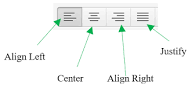
Text alignment
Alignment decides where the text sits on the page:
- Left Align: Text starts from the left (standard for letters).
- Centre: Text is in the middle (standard for titles).
- Right Align: Text sits against the right side (used for dates or addresses).
- Justify: Text is stretched so both sides are perfectly straight (common in textbooks).
How do you edit and organise a document?
Editing and organising tools help make a document easy to read.
Lists (bullets and numbering)
- Use Bullets for a shopping list or a list of items where the order does not matter.
- Use Numbering for steps in a recipe or instructions where order is important.
Cut, copy and paste
- Copy: Makes a duplicate of the text (shortcut: Ctrl + C).
- Cut: Removes the text from its original spot to move it elsewhere (shortcut: Ctrl + X).
- Paste: “Drops” the copied or cut text into a new spot (shortcut: Ctrl + V).
Spelling and grammar check
The computer acts like an English teacher! A red squiggly line means a spelling mistake. A blue or green line usually means a grammar mistake.
How do you save and print a document?
The most important rule in computing is: save your work! If the power goes out and you have not saved, your work is gone.
Save and Save As
- Use Save to update the file you are currently working on.
- Use Save As if you want to make a second copy of the file with a different name.
Page orientation
- Portrait: The page is tall (like a normal letter).
- Landscape: The page is wide (like a certificate or a map).
Printing
Before you print, always use Print Preview. It shows you exactly how the paper will look, so you do not waste ink and paper.
Class activity
- Open a blank document. Type your name, centre it, and make it Bold.
- Write a list of 5 African countries using Bullets.
- Change the style of your favourite country to Italics.
Discussion: If you were writing a letter to the President, which font and alignment would you use?
Evaluation
- Define word processing.
- State the use of the status bar and the title bar.
- List the four types of text alignment and say where each is used.
- Write the keyboard shortcuts for copy, cut and paste.
- When would you use Save As instead of Save?
Assignment
- Explain the difference between bullets and numbering, and give one example of when to use each.
- Explain the difference between portrait and landscape page orientation, and give one example of each.
This term's Digital Technologies topics
SS1 Third Term · 8 topics
Get Digital Technologies as PDF and Word
Every week of SS1 Digital Technologies, Third Term, formatted and ready to print. Ad-free, and the copy lock comes off.
Get this term Card, bank transfer, USSD or OPay
SS1 Digital Technologies Lesson Notes for Other Topics
Spreadsheets Application I
Read the full lesson note.
Spreadsheets Application II
Read the full lesson note.
Presentation Software
Read the full lesson note.

Database Introduction
Read the full lesson note.
Practical Database Management
Read the full lesson note.
Emerging Technologies: Artificial Intelligence (AI) & IOT
Read the full lesson note.
Emerging Technologies II: Robotics, Virtual & Augmented Reality
Read the full lesson note.
Introduction to Digital Technologies
Read the full lesson note.
History and Evolution of Digital Technologies
Read the full lesson note.
Number System
Read the full lesson note.
Computer Hardware
Read the full lesson note.
Operating System (OS)
Read the full lesson note.
Computer Maintenance and Safety
Read the full lesson note.
Data Representation and Safety
Read the full lesson note.

Introduction to Renewable Energy
Read the full lesson note.
Lesson Notes for Other Classes
SS2 Lesson Note
The complete lesson note to guide your studies.
SS3 Lesson Note
The complete lesson note to guide your studies.
