
Database Management System II – SS1 Data Processing Lesson Note (Third Term)
Download this term · ₦1,000Lesson note at a glance
- Subject
- Data Processing
- Class
- SS1
- Term
- Third Term
- Topic
- Database Management System II
- Order
- Topic 4 of 6 this term
- Reading time
- 7 min
A database management system (DBMS) is the program used to create a database and work with its records. In MS Access, you create fields with names and data types, set a primary key, enter data, and search, sort and modify records.
Behavioural objectives
By the end of the lesson, students should be able to:
- assign data types to fields in MS Access;
- set a field as the primary key (unique identifier);
- describe the basic steps of creating a database;
- list and explain common field types;
- enter and save data in an MS Access table;
- search, sort and modify records in MS Access.
How do you create fields with data types?
A data type is the kind of data a field accepts as input, and every field name is given one.
- Field name: a label that suits the information the field keeps, such as Surname.
- Data type: the rule that decides what the field will accept.
- Example: Surname is a text field, so it will not accept numbers such as 10 or 500.
Steps for setting a data type in MS Access
- Create the table and open it in Design View.
- Type the field name under the Field Name column.
- Click the drop-down arrow under Data Type, next to the field name.
- Select the data type you need from the list, as shown below.
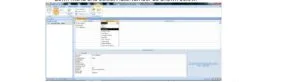
- ID Number: given the Number data type, because ID numbers are numeric.
- Surname and First name: given the Text data type, because they are names.
What is a unique identifier?
A unique identifier, also called a primary key, is a field whose value is different for every record in a table.
- Purpose: it lets the DBMS tell one record from another.
- Default key: MS Access usually sets a primary key on the first field.
- Example: an ID Number is unique to each student, so it can be the key.
Steps for setting another field as the primary key
- Open the table in Design View.
- Right-click the row selector (the small box at the left) of the field you want.
- Select Primary Key.
- Check that a key symbol appears beside the field.
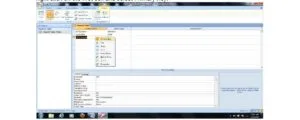
Note: If the key symbol does not appear, repeat the steps above.
How do you create a database?
Creating a database in any DBMS starts with defining the database structure, then building the tables and entering data.
Basic steps
- Define the database structure.
- Create the table and name its fields.
- Assign a data type to each field.
- Set the primary key.
- Enter the records.
- Save the database.
What does the database structure include?
The database structure states the type of database organisation to be used.
- Relational form: if chosen, the structure includes the RDBMS and the structure of each table.
- Rows and columns: the number of rows and the number of columns.
- Key: the field that identifies each record.
- Relationships: how the tables in the database link to one another.
What are field types?
A field type, also called a data type, is the kind of input a field is set to accept.
- Purpose: it stops wrong input from being stored, which protects database integrity.
- Names: the name of a data type varies between DBMSs, but the meaning is the same.
What are the common field types?
The common field types are listed below.
- Alphanumeric/text field: accepts both numbers and text, e.g. ASP2548.
- Numeric field: accepts real numbers (decimals, e.g. 8.15, 9.1) and integers (whole numbers, e.g. 125, 80).
- Date field: stores data in date format, e.g. 11-04-2009.
- Boolean field: accepts only Yes/No or True/False.
- Memo: holds long text such as notes and long descriptions. It can store up to 64,000 characters.
- Currency: holds money values.
- AutoNumber: inserts unique sequential or random numbers automatically when a record is created. Use it to create a primary key.
- Hyperlink: stores hyperlinks.
- Attachment: stores attached files and images.
- OLE Object: attaches an OLE object such as a Word document, a spreadsheet or a PowerPoint presentation.
How do you input data?
Data is input by typing records beneath the field names after the field names and data types have been set.
Steps in MS Access
- Double-click the Student Table in the left-hand pane of the MS Access window.
- Type the data beneath the field names.
- Click the next cell to continue entering data.
How do you save the data?
Saving data regularly keeps the database updated.
- Keyboard: press CTRL + S.
- Office button: click the Office button and select Save.
- Other DBMSs: each DBMS has its own save command. In MS Access, select Save in the MS Access window.
What are the basic database operations?
There are four basic database operations: searching, sorting, modifying and generating reports.
- Searching: finding a record or value in the database.
- Sorting: arranging records in ascending or descending order.
- Modifying: adding new records or editing existing data.
- Generating reports: presenting selected data in a layout ready for printing.
How do you search a database?
Searching is set up by choosing a find/replace behaviour in the Options dialogue box.
- On the Tools menu, click Options.
- Click the Edit/Find tab.
- Under Default find/replace behaviour, select one of the options below.
- Fast Search: searches the current field and matches the whole field.
- General Search: searches all fields and matches any part of the field.
- Start of Field Search: searches the current field and matches the beginning characters of the field.
How do you sort records?
Sorting arranges records in order, either ascending (A to Z, small to large) or descending (Z to A, large to small).
Sorting records in form view or datasheet view
- Start MS Access and open the database.
- Open the table or form whose data you want to view.
- Click the field you want to use for sorting.
- On the Records menu, point to Sort, then click Sort Ascending or Sort Descending.
- Sub-form: click the field you want to sort inside the sub-form.
- Sub-datasheet: click the expand indicator to display it, then click the field to sort.
- Note: in a form, you can sort on only one field at a time.
Sorting with a sub-datasheet
- Same level: sorting one sub-datasheet in Datasheet View sorts all sub-datasheets at that level.
- Several columns: select two or more adjacent columns, then sort them together.
- Order of sorting: Access sorts from the leftmost selected column.
- Saving: when you save the form or datasheet, Access saves the sort order.
Sorting records on a report
- Start MS Access and open the database.
- Open the report in Design View.
- On the View menu, click Sorting and Grouping to display the dialogue box.
- In the first row of the Field/Expression column, select a field name or type an expression.
- Default order: when you fill in the Field/Expression column, MS Access sets the sort order to Ascending.
- Limit: you can sort up to 10 fields or expressions in a report.
- More than one field: add another field or expression in the next row.
- Levels: the first row is the first sorting level, the second row is the second level, and so on.
How do you modify data?
Modifying data means adding new records or editing existing ones in a datasheet (table or query) or a form.
First open a table or query in Datasheet View, or a form in Form View. Then add a record as follows.
- MS Office Access 2003 or earlier: point to Go on the Edit menu, then click New Record.
- Typing the record: type the data and press TAB to move to the next field.
- Next record: at the end of the record, press TAB to go to the next record.
- MS Office Access 2007: click the Home tab, then click New in the Records group.
How do you edit data?
- Edit within a field: click the field you want to edit, then type the data.
- Replace the entire value: move the pointer to the leftmost part of the field until it changes into the plus pointer. Click, then type the data.
- Correct a typing mistake: press BACKSPACE.
- Cancel changes: press ESC to cancel changes in the current field. Press ESC again to cancel changes in the whole record.
Evaluation
- What is a data type, and why is it used in a database?
- State the steps for setting a field other than the first field as the primary key in MS Access.
- Name four field types and say what each one accepts.
- State the three search options under Default find/replace behaviour.
- How do you sort the records of a table in descending order in MS Access?
Assignment
Write out the steps for sorting records on a report in MS Access, and state how many fields you can sort on.
This term's Data Processing topics
SS1 Third Term · 6 topics
- Word Processing II
- Spreadsheet
- Database Management System
- Database Management System II
- Computer Ethics
- Safety Measures
Get Data Processing as PDF and Word
Every week of SS1 Data Processing, Third Term, formatted and ready to print. Ad-free, and the copy lock comes off.
Get this term Card, bank transfer, USSD or OPay
SS1 Data Processing Lesson Notes for Other Topics

Word Processing II
Read the full lesson note.

Spreadsheet
Read the full lesson note.

Database Management System
Read the full lesson note.

Computer Ethics
Read the full lesson note.

Safety Measures
Read the full lesson note.

History Of Computing
Read the full lesson note.

Digitalization Of Data
Read the full lesson note.

Data And Information
Read the full lesson note.

History Of Computer
Read the full lesson note.

Classification Of Computers
Read the full lesson note.

ICT Application In Everyday Life
Read the full lesson note.

The Art Of Information Processing
Read the full lesson note.

Process Of Information Transmission
Read the full lesson note.

Medium to Information Transmission
Read the full lesson note.

Operating System
Read the full lesson note.
Lesson Notes for Other Classes

SS2 Lesson Note
The complete lesson note to guide your studies.

SS3 Lesson Note
The complete lesson note to guide your studies.
