Technology(I), Games: Basketball Skills, Anti-Virus – Basic 4 Basic Science Lesson Note (Second Term)
Download Lesson NoteLesson note at a glance
- Subject
- Basic Science
- Class
- Basic 4
- Term
- Second Term
- Topic
- Technology(I), Games: Basketball Skills, Anti-Virus
- Order
- Topic 5 of 9 this term
- Reading time
- 13 min
Topic: technology (i)
LEARNING AREA
- Introductory Activities
- What is Technology?
- Examples of Technology Around Us
- Importance of Technology
- How Technology Helps Us
PERFORMANCE OBJECTIVES
By the end of this lesson, pupils should be able to:
- Define what technology means.
- Give examples of technology they use.
- Explain why technology is important.
- Appreciate how technology helps in daily life.
TEACHING AND LEARNING MATERIALS
- Mobile phone

- Computer/tablet

- Television

- Radio

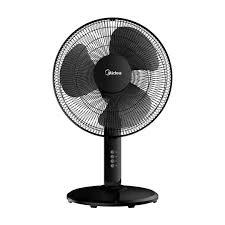
- Electric fan
- Pictures of different technologies
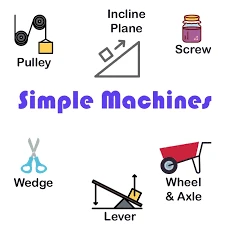
- Simple machines (scissors, wheel)
TEACHING AND LEARNING METHOD
- Simple explanation
- Show and tell
- Discussion
- Real examples
REFERENCE MATERIALS
- Primary Technology Textbook
- Basic Science Guide for Kids
ENTRY BEHAVIOUR/ PREVIOUS LESSON
Students use basic tools and machines at home and school.
WORD FILE
Technology, machine, tool, help, make, easier, life.
CONTENT
LESSON 1 – WHAT IS TECHNOLOGY?
DEFINITION OF TECHNOLOGY:
Technology means using tools, machines, and knowledge to make our lives easier and solve problems.
SIMPLE EXPLANATION:
- Technology helps us do things better
- It makes work faster and easier
- It solves problems we have
- It makes new things possible
TECHNOLOGY IS EVERYWHERE:
- At home (TV, phone, fan)
- At school (computer, projector)
- On the road (cars, traffic lights)
- In hospitals (machines to help sick people)
LESSON 2 – EXAMPLES OF TECHNOLOGY
TECHNOLOGY WE USE EVERY DAY:
AT HOME:
- Television – to watch programs
- Mobile phone – to talk to people far away
- Electric fan – to make us cool
- Refrigerator – to keep food fresh
- Light bulbs – to see in the dark
- Stove – to cook food
AT SCHOOL:
- Computer – to learn and type
- Projector – to show pictures on wall
- Calculator – to do math quickly
- Microphone – to make voice loud
- Air conditioner – to make room cool
FOR TRANSPORTATION:
- Cars – to travel quickly
- Bicycles – to move faster than walking
- Buses – to carry many people
- Airplanes – to fly to far places
SIMPLE TECHNOLOGY:
- Scissors – to cut things
- Wheel – to move heavy things
- Ladder – to reach high places
- Umbrella – to protect from rain
LESSON 3 – IMPORTANCE OF TECHNOLOGY
WHY TECHNOLOGY IS IMPORTANT:
MAKES LIFE EASIER:
- We don’t have to work so hard
- Things get done faster
- We can do more things
- Life becomes more comfortable
HELPS US COMMUNICATE:
- Talk to family far away (phone)
- Send messages quickly (text, email)
- Video calls to see people
- Share information fast
SAVES TIME:
- Cooking is faster (microwave, gas stove)
- Travel is quicker (cars, planes)
- Learning is faster (computers)
- Cleaning is easier (washing machine)
KEEPS US SAFE:
- Street lights help us see at night
- Smoke detectors warn of fire
- Seat belts protect in cars
- Medicine helps cure diseases
HELPS US LEARN:
- Computers teach us new things
- Television shows educational programs
- Internet gives us information
- Calculators help with math
LESSON 4 – HOW TECHNOLOGY HELPS US
IN DIFFERENT AREAS OF LIFE:
IN EDUCATION:
- Computers help us learn
- Projectors show lessons clearly
- Internet gives lots of information
- Educational apps make learning fun
IN HEALTH:
- Thermometer checks if we have fever
- X-ray machines see inside our body
- Ambulances take sick people to hospital quickly
- Medicine helps cure illnesses
IN FARMING:
- Tractors help farmers plow fields
- Irrigation systems water plants
- Fertilizers help crops grow better
- Storage facilities keep food fresh
IN ENTERTAINMENT:
- Television shows movies and cartoons
- Radio plays music and news
- Video games provide fun
- Cameras capture memories
IN WORK:
- Computers help people work faster
- Machines make products
- Tools help build houses
- Cash machines help count money
BENEFITS OF TECHNOLOGY:
- Makes work easier
- Saves time and energy
- Helps solve problems
- Creates new opportunities
- Improves quality of life
- Connects people worldwide
SIMPLE EXAMPLES OF HOW TECHNOLOGY HELPS:
BEFORE TECHNOLOGY:
- People walked everywhere (took long time)
- Cooked with fire (took long time)
- Washed clothes by hand (very hard work)
- Sent messages by walking (very slow)
WITH TECHNOLOGY:
- Cars take us places quickly
- Stoves cook food fast
- Washing machines clean clothes easily
- Phones send messages instantly
PRESENTATION
- Teacher shows mobile phone and explains it’s technology
- Teacher demonstrates how calculator makes math easier
- Teacher shows pictures of different technologies
- Teacher explains how each technology helps us
- Teacher discusses technology students use at home
STUDENT ACTIVITIES
Students practice:
- Identifying technology around them
- Explaining how phone helps communication
- Naming technologies they use at home
- Discussing how technology makes life easier
EVALUATIVE ACTIVITIES
- Define technology in simple words
- Name five examples of technology
- Explain how technology helps at home
- Tell why technology is important
LESSON EVALUATION/ASSIGNMENT
Students will:
- Count technologies in their home
- Draw three technologies they use
- Ask parents about technology when they were young
- Think of one problem technology solves
WORKBOOK
WEEKLY ASSESSMENT (TEST)
- Technology means using tools and machines to make life _______. A. Harder B. Easier
- A _______ is technology that helps us talk to people far away. A. Spoon B. Mobile phone
- Technology helps us _______ time. A. Waste B. Save
- _______ is simple technology that helps us cut things. A. Scissors B. Water
- Technology is important because it makes our lives more _______. A. Difficult B. Comfortable
Topic: games: basketball skills
LEARNING AREA
- Introductory Activities
- What is Basketball?
- Basic Basketball Skills
- Dribbling and Bouncing
- Throwing and Catching
- Passing the Ball
PERFORMANCE OBJECTIVES
By the end of this lesson, pupils should be able to:
- Know what basketball is.
- Dribble the ball correctly.
- Bounce and catch the ball safely.
- Throw the ball properly.
- Pass the ball to teammates.
TEACHING AND LEARNING MATERIALS
- Basketball (or rubber ball)

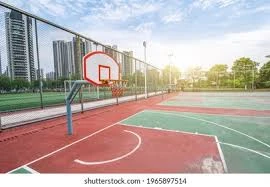
- Basketball court (or open space)
- Cones for marking

- Whistle
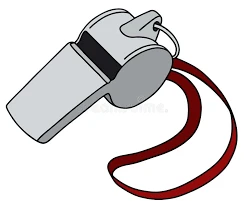
- Water bottles

TEACHING AND LEARNING METHOD
- Simple demonstration
- Hands-on practice
- Step-by-step teaching
REFERENCE MATERIALS
- Primary Physical Education Textbook
- Basic Basketball Guide for Kids
ENTRY BEHAVIOUR/ PREVIOUS LESSON
Students can catch and throw a ball safely.
WORD FILE
Basketball, dribble, bounce, throw, catch, pass, ball, skill.
CONTENT
LESSON 1 – WHAT IS BASKETBALL?
WHAT IS BASKETBALL?
Basketball is a fun game where two teams try to put a ball through a high basket to score points.
BASIC BASKETBALL FACTS:
- Played with a round ball
- Two teams play against each other
- Try to put ball in opponent’s basket
- Use hands to control the ball
- Cannot run while holding the ball
BASKETBALL SKILLS WE WILL LEARN:
- Dribbling – bouncing ball while moving
- Bouncing – making ball go up and down
- Throwing – sending ball through the air
- Catching – grabbing the ball safely
- Passing – giving ball to teammate
LESSON 2 – DRIBBLING AND BOUNCING
WHAT IS DRIBBLING?

Dribbling means bouncing the ball with one hand while walking or running.
HOW TO DRIBBLE:
- Hold ball in one hand
- Push ball down to ground
- Let ball bounce back up
- Catch ball and push down again
- Keep doing this while moving
DRIBBLING TIPS:
- Use fingertips, not palm
- Keep ball close to body
- Look ahead, not at ball
- Use right hand, then left hand
- Start slowly, then go faster
WHAT IS BOUNCING?

Bouncing is making the ball go up and down in one place.
HOW TO BOUNCE:
- Hold ball with both hands
- Push ball down hard
- Let ball bounce back up
- Catch ball with both hands
- Do it again
BOUNCING PRACTICE:
- Bounce 10 times in one spot
- Bounce while counting to 20
- Bounce high, then low
- Bounce with right hand, then left hand
LESSON 3 – THROWING AND CATCHING
WHAT IS THROWING?
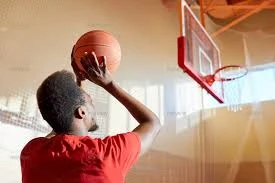
Throwing means sending the ball through the air to a target or person.
HOW TO THROW:
- Hold ball with both hands
- Bring ball to chest level
- Step forward with one foot
- Push ball forward with both hands
- Follow through with arms
THROWING TIPS:
- Aim at target
- Use both hands for control
- Step toward target
- Keep ball at chest level
- Practice throwing to wall
WHAT IS CATCHING?
Catching means grabbing the ball safely when someone throws it to you.
HOW TO CATCH:
- Watch the ball coming
- Put hands out in front
- Make cup shape with hands
- Let ball come into hands
- Pull ball toward body
CATCHING TIPS:
- Keep eyes on ball
- Use both hands
- Bend arms when ball arrives
- Pull ball to chest
- Don’t be afraid of ball
LESSON 4 – PASSING THE BALL
WHAT IS PASSING?
Passing means giving the ball to a teammate by throwing it to them.
TYPES OF PASSES:
CHEST PASS:
- Hold ball at chest level
- Step toward teammate
- Push ball with both hands
- Ball goes straight to teammate’s chest
BOUNCE PASS:
- Hold ball at chest level
- Aim at ground between you and teammate
- Push ball down to ground
- Ball bounces up to teammate
OVERHEAD PASS:
- Hold ball above head with both hands
- Step forward
- Throw ball over your head
- Ball goes to teammate
PASSING RULES:
- Always pass to teammate
- Look before you pass
- Pass quickly but safely
- Don’t pass to opponent
- Help teammate catch ball
LESSON 5 – PRACTICING ALL SKILLS
SKILL PRACTICE ACTIVITIES:
DRIBBLING PRACTICE:
- Dribble in straight line
- Dribble around cones
- Dribble with right hand 10 times
- Dribble with left hand 10 times
BOUNCING PRACTICE:
- Bounce ball 20 times without stopping
- Bounce ball high, then low
- Bounce and clap hands
- Bounce and turn around
THROWING AND CATCHING:
- Throw ball to wall and catch
- Throw ball high and catch
- Partner throwing and catching
- Throw ball into basket (if available)
PASSING PRACTICE:
- Chest pass with partner
- Bounce pass with partner
- Pass ball in circle with friends
- Pass ball while walking
SIMPLE GAMES:
- Keep the Ball Up – don’t let ball touch ground
- Pass and Move – pass ball then run to new spot
- Dribble Tag – dribble while playing tag
- Shooting Practice – try to throw ball in basket
SAFETY RULES:
- Always watch the ball
- Don’t throw ball at people’s faces
- Share the ball with everyone
- Stop when teacher blows whistle
- Drink water when tired
PRESENTATION
- Teacher shows basketball and explains the game
- Teacher demonstrates dribbling with one hand
- Teacher shows proper throwing and catching technique
- Teacher demonstrates different types of passes
- Teacher leads students in simple practice activities
STUDENT ACTIVITIES
Students practice:
- Dribbling ball 10 times with each hand
- Bouncing ball in one spot 20 times
- Throwing and catching with partner
- Making chest passes to teammates
- Simple basketball games
EVALUATIVE ACTIVITIES
- Dribble ball 10 times without losing control
- Bounce ball 15 times in one spot
- Catch ball thrown by teacher
- Make chest pass to partner
- Show proper throwing form
LESSON EVALUATION/ASSIGNMENT
Students will:
- Practice dribbling at home (if they have ball)
- Practice throwing and catching with family
- Watch basketball game on TV
- Tell family about basketball skills learned
WORKBOOK
WEEKLY ASSESSMENT (TEST)
- Basketball is played with a _______ ball. A. Square B. Round
- _______ means bouncing the ball while moving. A. Catching B. Dribbling
- When catching, we use _______ hands. A. One B. Both
- A _______ pass goes straight to teammate’s chest. A. Chest B. Foot
- We should dribble with our _______, not palm. A. Fingertips B. Whole hand
Topic: anti-virus
LEARNING AREA
- Introductory Activities
- What is Anti-virus?
- Why We Need Anti-virus
- Types of Anti-virus
- How to Keep Computers Safe
PERFORMANCE OBJECTIVES
By the end of this lesson, pupils should be able to:
- Know what anti-virus is.
- Understand why computers need protection.
- Name different types of anti-virus.
- Know how to keep computers safe.
TEACHING AND LEARNING MATERIALS
- Computer/laptop

- Anti-virus software examples

- Pictures of computer protection
- Charts showing safe computer use
TEACHING AND LEARNING METHOD
- Simple explanation
- Demonstration
- Discussion
REFERENCE MATERIALS
- Primary Computer Studies Textbook
- Basic Computer Safety Guide
ENTRY BEHAVIOUR/ PREVIOUS LESSON
Students know how to use computers and understand that computers can get sick.
WORD FILE
Anti-virus, protect, computer, safe, software, security, scan.
CONTENT
LESSON 1 – WHAT IS ANTI-VIRUS?
WHAT IS ANTI-VIRUS?
Anti-virus is special software that protects computers from getting sick or damaged by bad programs called viruses.
HOW ANTI-VIRUS WORKS:
- Acts like a guard for the computer
- Watches for dangerous programs
- Removes bad things that try to enter
- Keeps computer running well
- Scans files to make sure they are safe
WHAT ANTI-VIRUS DOES:
- Protects computer from viruses
- Scans files and programs
- Removes dangerous software
- Warns when something is unsafe
- Updates to catch new threats
LESSON 2 – WHY WE NEED ANTI-VIRUS
WHY COMPUTERS NEED PROTECTION:
COMPUTER VIRUSES CAN:
- Make computer run very slowly
- Delete important files
- Stop programs from working
- Crash the computer
- Steal personal information
WITHOUT ANTI-VIRUS:
- Computer gets sick easily
- Files can be lost
- Computer becomes slow
- Programs stop working
- May need expensive repairs
WITH ANTI-VIRUS:
- Computer stays healthy
- Files are protected
- Computer runs smoothly
- Programs work properly
- Peace of mind for users
LESSON 3 – TYPES OF ANTI-VIRUS
DIFFERENT KINDS OF ANTI-VIRUS SOFTWARE:
FREE ANTI-VIRUS:
- Windows Defender (comes with Windows)
- Avast Free
- AVG Free
- Malwarebytes Free
Good things about free anti-virus:
- Costs no money
- Basic protection
- Easy to use
- Good for home computers
PAID ANTI-VIRUS:
- Norton Anti-virus
- McAfee
- Kaspersky
- Bitdefender
Good things about paid anti-virus:
- Better protection
- More features
- Customer support
- Advanced security tools
BUILT-IN ANTI-VIRUS:
- Windows Defender (in Windows computers)
- XProtect (in Mac computers)
- Chrome OS Security (in Chromebooks)
Good things about built-in anti-virus:
- Already on computer
- Works automatically
- Updates by itself
- No need to install
ONLINE ANTI-VIRUS:
- Online scanners
- Cloud-based protection
- Web-based security
Good things about online anti-virus:
- Works through internet
- No installation needed
- Always up-to-date
- Can scan from anywhere
MOBILE ANTI-VIRUS:
- For phones and tablets
- Android security apps
- iPhone protection
Good things about mobile anti-virus:
- Protects phones and tablets
- Keeps personal data safe
- Blocks bad apps
- Safe internet browsing
LESSON 4 – CHOOSING THE RIGHT ANTI-VIRUS
WHAT TO LOOK FOR:
FOR HOME COMPUTERS:
- Easy to use
- Doesn’t make computer slow
- Regular updates
- Good protection
- Affordable or free
FOR SCHOOL COMPUTERS:
- Strong protection
- Easy for teachers to manage
- Protects many computers
- Safe for students to use
IMPORTANT FEATURES:
- Real-time protection – always watching
- Automatic updates – gets new protection
- Easy scanning – checks computer regularly
- Safe browsing – protects when online
- Simple interface – easy to understand
LESSON 5 – HOW TO KEEP COMPUTERS SAFE
COMPUTER SAFETY RULES:
USE ANTI-VIRUS:
- Always have anti-virus installed
- Keep it turned on
- Let it update automatically
- Run scans regularly
SAFE INTERNET HABITS:
- Don’t click on strange links
- Don’t download unknown files
- Only visit safe websites
- Ask adults before downloading anything
BE CAREFUL WITH:
- Email attachments from strangers
- Free downloads from internet
- Pop-up messages
- USB drives from others
GOOD COMPUTER HABITS:
- Keep software updated
- Use strong passwords
- Backup important files
- Restart computer regularly
- Keep computer clean
WHAT TO DO IF COMPUTER GETS SICK:
- Tell an adult immediately
- Don’t use computer until fixed
- Run anti-virus scan
- Remove infected files
- Get help from computer expert
SIMPLE SAFETY TIPS:
- Think before you click
- When in doubt, ask an adult
- Keep anti-virus running
- Don’t share passwords
- Be careful with downloads
PRESENTATION
- Teacher explains what anti-virus is using simple words
- Teacher shows anti-virus software on computer screen
- Teacher demonstrates how to run a scan
- Teacher explains different types of anti-virus
- Teacher discusses computer safety rules
STUDENT ACTIVITIES
Students practice:
- Identifying anti-virus icons on computer
- Understanding why computers need protection
- Naming different types of anti-virus
- Learning safe computer habits
- Recognizing dangerous situations
EVALUATIVE ACTIVITIES
- Explain what anti-virus does
- Name three types of anti-virus
- List two computer safety rules
- Identify anti-virus software on computer
- Explain why computers need protection
LESSON EVALUATION/ASSIGNMENT
Students will:
- Check if home computer has anti-virus
- Ask parents about computer safety
- Practice safe internet habits
- Remember not to click strange links
WORKBOOK
WEEKLY ASSESSMENT (TEST)
- Anti-virus software _______ computers from viruses. A. Harms B. Protects
- _______ Defender comes free with Windows computers. A. Windows B. Apple
- Free anti-virus costs _______ money. A. Much B. No
- We should _______ anti-virus software regularly. A. Turn off B. Update
- When unsure about downloading, we should ask an _______. A. Adult B. Friend
This term's Basic Science topics
Basic 4 Second Term · 9 topics
- Soil, Track Event, and Typing and Saving on Microsoft Powerpoint.
- Soil (II): Track Event, and Typing and Saving on Microsoft Powerpoint.
- Soil (II): Growing of Plants & Waste Disposal
- Mixture, Physical Fitness, Virus
- Technology(I), Games: Basketball Skills, Anti-Virus
- Technology III, Game and What Is Coding
- Measurement (Measuring Liquids), Gymnastics, and Coding
- Measurement, Food/Nutrition, Use of Coding
- Shape Construction with Paper(I) and Safety at Home and School
Second Term Basic Science Lesson Notes for Other Topics
Demonstrating Air in Space
Read the full lesson note.
Air
Read the full lesson note.
Light Energy, Uses of Light and Colour
Read the full lesson note.
Colour Identification 1 - Colours of Objects
Read the full lesson note.
Colour Identification II- Road Traffic Light Signs
Read the full lesson note.
Colour Identification III - Road Markings
Read the full lesson note.
Soil
Read the full lesson note.
Soil II: Importance & Things Found in Soil
Read the full lesson note.
Water - Purifying Water
Read the full lesson note.
Water - Packaged Water
Read the full lesson note.
Soil I - Importance to Plants
Read the full lesson note.
Input Devices
Read the full lesson note.
Air in Motion I - Wind
Read the full lesson note.
Air in Motion II - Harmful Effects of Wind
Read the full lesson note.
Water
Read the full lesson note.
Lesson Notes for Other Classes

Basic 1 Lesson Note
The complete lesson note to guide your studies.

Basic 2 Lesson Note
The complete lesson note to guide your studies.
Basic 3 Lesson Note
The complete lesson note to guide your studies.

Basic 5 Lesson Note
The complete lesson note to guide your studies.
Basic 6 Lesson Note
The complete lesson note to guide your studies.
JSS1 Lesson Note
The complete lesson note to guide your studies.