
Classification of Computer Hardware – SS1 Computer Hardware & GSM Repair Lesson Note (First Term)
Download this term · ₦1,000Lesson note at a glance
- Subject
- Computer Hardware & GSM Repair
- Class
- SS1
- Term
- First Term
- Topic
- Classification of Computer Hardware
- Order
- Topic 2 of 8 this term
- Reading time
- 4 min
Computer hardware is the physical parts of a computer that you can touch.
Behavioural objectives
By the end of the lesson, students should be able to:
- name the four categories of computer hardware;
- give examples of input, output and storage devices;
- state the job of the CPU, the motherboard and RAM;
- explain the difference between RAM and storage;
- describe how the categories work together when a letter is typed and saved.
What are the categories of computer hardware?
There are four categories of computer hardware: input, processing, output and storage.
- Input units: send data into the computer.
- Processing unit: works on the data.
- Output units: show the result to the user.
- Storage units: keep files even when the power is off.
| Category | Job description | Examples |
|---|---|---|
| Input | Sending data IN | Keyboard, mouse, microphone |
| Processing | Doing the WORK | CPU, motherboard, RAM |
| Output | Bringing data OUT | Monitor, printer, speaker |
| Storage | Keeping data SAFE | Hard drive, flash drive |
What are input units (the “senses”)?
Input devices are hardware that send data into the computer, turning information from our world into 0s and 1s the computer understands.
- Keyboard: the most common input device; you press a key and a character appears.
- Mouse: helps you point and click, like a finger pointing at things on a shelf.
- Scanner: turns a physical paper into a digital picture.
- Microphone: captures your voice (sound) and sends it inside.
- Webcam: captures live video and pictures for the computer.
- Touchscreen: lets you tap the screen to give commands, as on a smartphone.
What is the processing unit (the “chef”)?
The processing unit is the part of the computer where data is worked on, led by the CPU.
CPU (Central Processing Unit)
- Job: carries out instructions and controls the other parts of the computer.
- Example: when you click “Play” on a video, the CPU starts the pictures and sound.
- Nickname: the brain of the computer.
- Where found: in every computer and every smartphone.
Motherboard
- Job: the main circuit board that holds the CPU and connects all the parts together.
- Comparison: it acts like the “nervous system” of the computer.
RAM (Random Access Memory)
- Job: the “working table” that holds the data and programs in use at the moment.
- Effect of more RAM: the computer can run more things at once without “hanging”.
- Weakness: it loses everything when the power is switched off.
What are output units (the “result”)?
Output devices are hardware that show the result of processing to the user.
- Monitor (screen): shows the visual result of your work.
- Printer: gives you a physical “hard copy” of your digital work.
- Speakers and headphones: let you hear the sound the computer is processing.
- Projector: shows the computer screen on a wall or large screen for a class.
What are hard copy and soft copy?
- Hard copy: output on paper, such as a printed letter.
- Soft copy: output you see on a screen or hear through speakers.
Simple tip: if information comes OUT of the computer to you, the device is an output device.
What are storage units (the “cupboard”)?
Storage devices are hardware that keep your files permanently, even when the power is off.
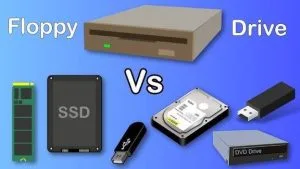
- Hard Disk Drive (HDD): a big “library” inside the computer that holds thousands of files.
- Solid State Drive (SSD): a newer and much faster type of drive; many modern laptops use it.
- USB flash drive: a small stick you carry in your pocket to move files between computers.
- Memory card (SD card): a tiny chip used mostly in phones and cameras to store photos and videos.
What is the difference between RAM and storage?
RAM is the temporary working memory that holds what you are using now.
Storage is the permanent place where files are kept until you delete them.
| Point | RAM | Storage |
|---|---|---|
| Purpose | Holds work in progress | Keeps files for later use |
| Power off | Data is lost | Data stays |
| Comparison | Working table | Cupboard |
| Examples | RAM chips | HDD, SSD, flash drive, SD card |
How do the hardware categories work together?
The four categories work in order, as shown when you type a letter and save it.
- Input: you type the letter “A” on the keyboard.
- Processing: the CPU sees that a key was pressed and tells the computer to draw the letter “A”.
- Output: the letter “A” appears on the monitor.
- Storage: you click “Save”, and the letter is kept on the hard drive so you can open it tomorrow.
Class activity
Look around the computer lab and find one device that acts as both input and output. (Hint: think about the screens on modern smartphones.)
Evaluation
- Name the four categories of computer hardware.
- Give two examples each of input devices and output devices.
- What is the job of the CPU?
- State one difference between RAM and storage.
- Name the hardware used at each step when you type a letter and save it.
Assignment
Draw a table with the headings Input, Processing, Output and Storage. Write the job of each category and list at least two devices under it.
This term's Computer Hardware & GSM Repair topics
SS1 First Term · 8 topics
Get Computer Hardware & GSM Repair as PDF and Word
Every week of SS1 Computer Hardware & GSM Repair, First Term, formatted and ready to print. Ad-free, and the copy lock comes off.
Get this term Card, bank transfer, USSD or OPay
SS1 Computer Hardware & GSM Repair Lesson Notes for Other Topics

Introduction to Computer Hardware and GSM Repairs
Read the full lesson note.

Peripheral Devices
Read the full lesson note.
Internal Components of a Computer
Read the full lesson note.

Safety Rules and Workshop Practices
Read the full lesson note.

Tools for Computer and GSM Repairs
Read the full lesson note.
Computer Assembly I
Read the full lesson note.
Computer Assembly II
Read the full lesson note.
Introduction to GSM Technology
Read the full lesson note.
GSM Hardware Components
Read the full lesson note.
GSM Software Components
Read the full lesson note.
GSM Repair Tools
Read the full lesson note.

Disassembly and Reassembly of GSM Phones
Read the full lesson note.
Common GSM Faults II
Read the full lesson note.
Common GSM Faults I
Read the full lesson note.
GSM Software Issue
Read the full lesson note.
Lesson Notes for Other Classes

SS2 Lesson Note
The complete lesson note to guide your studies.

SS3 Lesson Note
The complete lesson note to guide your studies.
