My Desktop – Basic 1 Basic Technology Lesson Note
Download Lesson NoteLesson note at a glance
- Subject
- Basic Technology
- Class
- Basic 1
- Topic
- My Desktop
- Reading time
- 2 min
Learning Objectives:
By the end of the lesson, pupils should be able to:
- Identify parts of the computer desktop
- Know what the Start menu, taskbar, and icons are
- Navigate the desktop safely
Introduction:
When we turn on a computer and it finishes booting, we see the desktop. The desktop is like the top of a real desk where we can see and organize our things.
Lesson Content:
What is a Desktop?
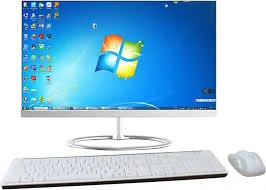
- The desktop is the main screen we see after the computer starts
- It is like a workspace where we can find our programs
- Everything we need to use the computer is on the desktop
- We can organize it to make our work easier
Parts of the desktop:
-
Desktop background:
- The picture or color we see behind everything else
- It can be a photo, pattern, or solid color
- We can change it to pictures we like
- It makes the computer look nice and personal
- Does not affect how the computer works
-
ICONS:
- Small pictures that represent programs or files
- We double-click on icons to open things
- Common icons include:
- Recycle Bin (for deleted items)
- My Computer (to see files)
- Internet browser (to go online)
- Games and learning programs
- Icons have names written under them
-
Start menu:
- Special button usually at bottom left corner
- Shows list of all programs on computer
- Click once to open the menu
- Helps us find and start programs
- Has shutdown option to turn off computer safely
-
TASKBAR:
- Long bar usually at bottom of screen
- Shows programs that are currently running
- Has Start button on one side
- Has clock and other information
- Helps us switch between different programs
Other Desktop Elements:
My Computer Icon:
- Shows all drives and folders
- Helps us find our saved work
- Like looking inside filing cabinets
Recycle Bin:
- Holds deleted files temporarily
- Files can be restored if deleted by mistake
- Needs to be emptied sometimes
How to Use Desktop Safely:
- Look Before Clicking: Make sure you click the right icon
- Double-Click Gently: Click twice quickly but not too hard
- Ask for Help: Call teacher if something looks different
- Don’t Delete: Do not move or delete icons you don’t know
- Keep Organized: Put things back where you found them
Basic Desktop Actions:
- Single Click: Selects an item
- Double Click: Opens a program or file
- Right Click: Shows menu of options (for older students)
- Drag: Move icons to different places
Class Activity:
Teacher shows desktop on projector. Children identify different parts and practice pointing to Start menu, taskbar, and icons.
Evaluation Questions:
- What do we see when the computer finishes starting?
- Where is the Start menu usually located?
- What are the small pictures on desktop called?
- What does the taskbar show us?
- How many times do we click to open a program?
Assignment:
Next time you see a computer, look for the desktop and try to spot the Start menu, taskbar, and at least three icons. Tell your parents what each part does.
Lesson Notes for Other Classes

Basic 2 Lesson Note
The complete lesson note to guide your studies.
Basic 3 Lesson Note
The complete lesson note to guide your studies.

Basic 4 Lesson Note
The complete lesson note to guide your studies.

Basic 5 Lesson Note
The complete lesson note to guide your studies.
Basic 6 Lesson Note
The complete lesson note to guide your studies.
JSS1 Lesson Note
The complete lesson note to guide your studies.