
Our Weather (II), Table Tennis, And Launching Microsoft Powerpoint Basic 4 Basic Science Lesson Note
Download Lesson NoteTopic: Our Weather (II), Table Tennis, And Launching Microsoft Powerpoint
TOPIC: OUR WEATHER (II)
LEARNING AREA
- Introductory Activities
- Weather Instruments and Their Uses
- Weather Symbols and Signs
- Weather Records and Recording Methods
- Making Weather Instructions
- Practical Weather Observation
- Lesson Evaluation and Weekly Assessment (Test)
PERFORMANCE OBJECTIVES
By the end of the lesson, the pupils should have attained the following objectives (cognitive, affective and psychomotor) and be able to –
- identify different weather instruments and their uses.
- recognize and use weather symbols correctly.
- keep accurate weather records and charts.
- create simple weather instructions for different conditions.
- use weather instruments to measure weather elements.
- interpret weather data and make simple predictions.
ENTRY BEHAVIOR
The pupils understand the meaning of weather, weather elements, and factors affecting weather from the previous lesson.
INSTRUCTIONAL MATERIALS
The teacher will teach the lesson with the aid of:
- Thermometer (for temperature measurement)

- Rain gauge or measuring cylinder
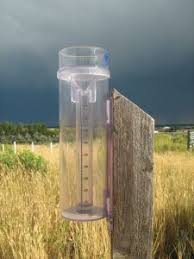
- Wind vane or wind direction indicator

- Barometer (simple type if available)

- Hygrometer (for humidity measurement)

- Weather symbols chart

- Weather recording sheets/charts
- Calendar for weather records
- Pictures of weather instruments
- Simple weather station setup
- Colored pencils for drawing symbols
METHOD OF TEACHING
Choose a suitable and appropriate methods for the lessons.
Note – Irrespective of choosing methods of teaching, always introduce an activities that will arouse pupil’s interest or lead them to the lessons.
REFERENCE MATERIALS
- Scheme of Work
- 9 – Years Basic Education Curriculum
- Course Book
- All Relevant Material
- Online Information
CONTENT OF THE LESSON
LESSON 1 – WEATHER INSTRUMENTS
Weather instruments are tools used to measure and record different weather elements. These instruments help us understand and predict weather conditions.
- THERMOMETER
Purpose: Measures air temperature
How it works:
- Contains liquid (mercury or alcohol) that expands when hot and contracts when cold
- Shows temperature in degrees Celsius (°C)
- Has a scale with numbers
How to use:
- Place in shade, away from direct sunlight
- Wait 2-3 minutes for accurate reading
- Read at eye level
- Record the temperature
Types:
- Maximum thermometer: Records highest temperature
- Minimum thermometer: Records lowest temperature
- Digital thermometer: Shows temperature on screen
- RAIN GAUGE
Purpose: Measures amount of rainfall
How it works:
- Collects rainwater in a container
- Has markings to show amount in millimeters (mm)
- Funnel directs rain into measuring cylinder
How to use:
- Place in open area away from trees and buildings
- Ensure it’s level and stable
- Read measurement after rain stops
- Empty after recording
- Record amount in millimeters
Simple rain gauge: Can be made with plastic bottle and ruler
- WIND VANE (WEATHER COCK)
Purpose: Shows wind direction
How it works:
- Arrow points in direction wind is coming FROM
- Has letters N, S, E, W for directions
- Moves freely on a pivot
How to use:
- Mount in open area above ground
- Ensure it can rotate freely
- Read direction arrow points to
- Record wind direction (N, NE, E, SE, S, SW, W, NW)
- BAROMETER
Purpose: Measures air pressure
How it works:
- Shows if air pressure is high or low
- High pressure usually means good weather
- Low pressure often means bad weather coming
Simple barometer: Can observe changes in weather patterns
- HYGROMETER
Purpose: Measures humidity (moisture in air)
How it works:
- Shows percentage of water vapor in air
- High humidity = feels sticky
- Low humidity = feels dry
Simple method: Observe dew formation or use wet/dry cloth method
- ANEMOMETER
Purpose: Measures wind speed
How it works:
- Has cups that spin in the wind
- Faster spinning = stronger wind
- Shows speed in kilometers per hour
LESSON 2 – WEATHER SYMBOLS
Weather symbols are simple pictures or signs used to represent different weather conditions quickly and easily.
COMMON WEATHER SYMBOLS:
SUN AND CLEAR SKY
- Symbol: ☀️ or circle with rays
- Meaning: Sunny, clear weather
- Conditions: No clouds, bright sunshine
CLOUDS
- Partly Cloudy: ⛅ (sun with cloud)
- Cloudy: ☁️ (cloud shape)
- Overcast: Multiple clouds covering sky
RAIN
- Light Rain: 🌦️ (cloud with few drops)
- Heavy Rain: 🌧️ (cloud with many drops)
- Drizzle: Small dots under cloud
WIND
- Light Wind: Single arrow →
- Strong Wind: Multiple arrows →→→
- Calm: Circle with no arrows
STORMS
- Thunderstorm: ⛈️ (cloud with lightning)
- Lightning: Zigzag line ⚡
- Thunder: Cloud with lightning and rain
SPECIAL CONDITIONS
- Fog: Wavy lines ~~~
- Mist: Light wavy lines
- Dust/Harmattan: Dots in air
TEMPERATURE SYMBOLS
- Hot: Thermometer with high red
- Cold: Thermometer with low blue
- Warm: Medium thermometer reading
LESSON 3 – WEATHER RECORDS
Weather records are systematic recordings of weather conditions over time. Keeping weather records helps us understand weather patterns and make predictions.
WHAT TO RECORD:
Daily Weather Elements:
- Date and Time: When observation was made
- Temperature: Highest and lowest of the day
- Rainfall: Amount in millimeters
- Wind Direction: Where wind comes from
- Wind Speed: Calm, light, moderate, strong
- Cloud Cover: Clear, partly cloudy, cloudy, overcast
- Visibility: Clear, hazy, foggy
- Special Conditions: Thunder, lightning, dust, etc.
WEATHER RECORDING METHODS:
- WEATHER CHART/TABLE
Date | Time | Temp(°C) | Rain(mm) | Wind Dir | Wind Speed | Clouds | Conditions
—–|——|———-|———-|———-|————|——–|————
Jan 1| 9 AM | 28 | 0 | SW | Light | Partly | Sunny
Jan 2| 9 AM | 26 | 5.2 | W | Moderate | Cloudy | Rainy
- WEATHER DIARY
- Write detailed descriptions daily
- Include personal observations
- Note unusual weather events
- Record how weather affects activities
- WEATHER MAP
- Draw symbols on calendar
- Use colors for different conditions
- Show weather patterns over time
BENEFITS OF WEATHER RECORDS:
- Pattern Recognition: See seasonal changes
- Prediction: Help forecast future weather
- Planning: Plan activities based on weather
- Learning: Understand local weather patterns
- Comparison: Compare different years
- Science: Contribute to weather knowledge
LESSON 4 – MAKING WEATHER INSTRUCTIONS
Weather instructions are guidelines that tell people what to do during different weather conditions to stay safe and comfortable.
SUNNY/HOT WEATHER INSTRUCTIONS:
Safety Measures:
- Wear light-colored, loose clothing
- Drink plenty of water
- Stay in shade during hottest part of day (12-3 PM)
- Wear hat and sunglasses
- Use sunscreen if available
Activities:
- Good for outdoor sports
- Ideal for drying clothes
- Perfect for farming activities
- Great for traveling
RAINY WEATHER INSTRUCTIONS:
Safety Measures:
- Carry umbrella or raincoat
- Wear waterproof shoes
- Stay indoors during heavy rain
- Avoid standing under trees during thunderstorm
- Don’t walk through flooded areas
Activities:
- Stay indoors for reading/studying
- Avoid outdoor sports
- Good time for indoor games
- Farmers should protect crops
WINDY WEATHER INSTRUCTIONS:
Safety Measures:
- Secure loose objects outdoors
- Avoid flying kites near power lines
- Be careful of falling branches
- Close windows and doors
- Don’t light fires outdoors
Activities:
- Good for kite flying (safely)
- Avoid outdoor cooking
- Ideal for wind-powered activities
- Be careful with umbrellas
COLD/HARMATTAN INSTRUCTIONS:
Safety Measures:
- Wear warm clothing
- Protect skin from dry air
- Drink warm liquids
- Keep doors and windows closed
- Use moisturizer for skin
Activities:
- Good for outdoor exercises
- Ideal visibility for traveling
- Take extra care of health
- Protect crops from cold
FOGGY/MISTY WEATHER INSTRUCTIONS:
Safety Measures:
- Drive slowly with headlights on
- Use fog lights if available
- Stay close to home
- Walk carefully due to poor visibility
- Avoid outdoor activities
LESSON 5 – SIMPLE WEATHER STATION
Creating a simple weather station helps students practice using instruments and keeping records.
BASIC WEATHER STATION COMPONENTS:
- Temperature Corner:
- Thermometer in shaded box
- Maximum/minimum recording
- Daily temperature chart
- Rainfall Section:
- Rain gauge in open area
- Daily rainfall measurement
- Monthly rainfall total
- Wind Observation:
- Wind vane for direction
- Simple wind speed estimation
- Wind pattern recording
- Sky Watching Area:
- Cloud observation spot
- Cloud type identification
- Sky condition recording
DAILY OBSERVATION ROUTINE:
- Morning Observation (8-9 AM):
- Read thermometer
- Check rain gauge
- Observe wind direction
- Note cloud conditions
- Record Data:
- Write measurements in chart
- Draw weather symbols
- Note special conditions
- Evening Check (5-6 PM):
- Second temperature reading
- General weather summary
- Prepare for next day
LESSON 6 – WEATHER PREDICTION
Using collected weather data to make simple predictions about future weather.
SIMPLE PREDICTION METHODS:
- PATTERN OBSERVATION:
- Look for repeating weather patterns
- Note seasonal changes
- Compare with previous years
- CLOUD READING:
- Dark clouds often mean rain coming
- Clear skies usually continue
- Wind changes may bring new weather
- PRESSURE CHANGES:
- Falling pressure = bad weather coming
- Rising pressure = good weather coming
- Stable pressure = weather continues
- WIND DIRECTION:
- Wind from ocean = moisture and rain
- Wind from land = dry conditions
- Changing wind = changing weather
PRESENTATION
To deliver the lesson, the teacher adopts the following steps:
- To introduce the lesson, the teacher revises the previous lesson on weather elements. Based on this, he/she asks pupils how we can measure these weather elements;
- Shows and demonstrates different weather instruments and their uses;
Pupil’s Activities – Handle and practice using thermometer, rain gauge, and other available instruments.
- Teaches weather symbols and their meanings using charts and drawing activities;
Pupil’s Activities – Practice drawing weather symbols and match symbols with weather conditions.
- Demonstrates how to keep weather records using sample charts;
Pupil’s Activities – Start their own weather recording chart for the week.
- Guides pupils in creating weather instructions for different conditions;
Pupil’s Activities – Work in groups to create safety instructions for sunny, rainy, and windy weather.
- Sets up a simple classroom weather station;
Pupil’s Activities – Take turns being weather observers and record daily measurements.
- Summary the lesson on the board.
Pupil’s Activities – Copy as the teacher writes.
CONCLUSION
To conclude the lesson for the week, the teacher revises the entire lesson and links it to the following week’s lesson on seasonal weather patterns.
NEXT LESSON
Our Weather (III) – Seasonal Weather Patterns and Climate – Basic Science and Technology Primary
LESSON EVALUATION/ASSIGNMENT
Ask pupils to:
- Name five weather instruments and their uses
- Draw and label ten weather symbols
- Keep a daily weather record for two weeks
- Create weather instructions for rainy season
- Use a thermometer to measure temperature correctly
WORKBOOK
WEEKLY ASSESSMENT (TEST)
- The instrument used to measure temperature is _______. A. Rain gauge B. Thermometer
- A rain gauge measures _______. A. Wind speed B. Amount of rainfall
- Wind direction is shown by a _______. A. Wind vane B. Barometer
- The symbol ☀️ represents _______ weather. A. Rainy B. Sunny
- The symbol ☁️ represents _______ weather. A. Cloudy B. Windy
- Air pressure is measured by a _______. A. Hygrometer B. Barometer
- Weather records help us _______ future weather. A. Predict B. Control
- During sunny weather, we should wear _______ clothing. A. Dark, heavy B. Light, loose
- A simple rain gauge can be made from a _______. A. Plastic bottle B. Metal spoon
- List five weather instruments: a. _________________ b. _________________ c. _________________ d. _________________ e. _________________
TOPIC – TABLE TENNIS SKILLS
LEARNING AREA
- Introductory Activities
- Understanding Table Tennis as a Sport
- Basic Equipment and Setup
- Fundamental Skills Development
- The Grip Techniques
- Service Rules and Techniques
- Forehand and Backhand Strokes
- Scoring System and Game Rules
- Practical Game Play
PERFORMANCE OBJECTIVES
By the end of the lesson, most of the pupils should have attained the following objectives –
- explain the basic concepts of table tennis as a sport.
- demonstrate proper grip techniques for holding the paddle.
- perform basic service techniques correctly.
- execute forehand and backhand strokes effectively.
- understand and apply the scoring system.
- show proper stance and footwork.
- apply table tennis skills in game situations.
- understand basic rules and regulations.
INSTRUCTIONAL MATERIALS
The teacher will teach the lesson with the aid of:
- Table tennis table

2. Table tennis paddles/bats (various sizes for different ages)
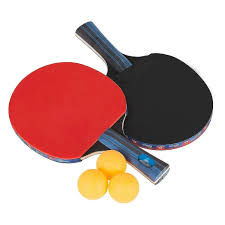
3. Table tennis balls (40mm regulation size)
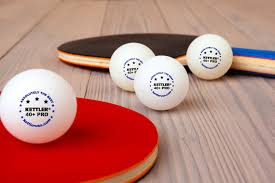
4. Net and post set
5.Scoreboard or paper for keeping score
6. Cones or markers for footwork drills
7. Charts showing proper techniques
8. Video clips of table tennis games (if available)
9. First aid kit
10. Clean towels for wiping equipment
METHOD OF TEACHING
Choose a suitable and appropriate methods for the lessons.
Note – Irrespective of choosing methods of teaching, always introduce an activities that will arouse pupil’s interest or lead them to the lessons.
REFERENCE MATERIALS
- Scheme of Work
- 9 – Years Basic Education Curriculum
- Physical Education Curriculum
- International Table Tennis Federation (ITTF) Rules
- Table Tennis Coaching Manual
- All Relevant Material
- Online Information
CONTENT OF THE LESSON
LESSON 1 – INTRODUCTION TO TABLE TENNIS
WHAT IS TABLE TENNIS?
Table tennis, also known as ping pong, is an indoor sport played on a table divided by a net. Two or four players hit a lightweight ball back and forth using small paddles.
KEY CHARACTERISTICS OF TABLE TENNIS:
- Indoor Sport: Played in enclosed spaces
- Fast-Paced: Requires quick reflexes and reactions
- Skill-Based: Emphasizes technique over physical strength
- Accessible: Can be played by people of all ages
- Mental Game: Requires concentration and strategy
- Individual or Doubles: Can be played 1v1 or 2v2
BENEFITS OF TABLE TENNIS:
- Improves hand-eye coordination
- Develops quick reflexes
- Enhances concentration and focus
- Provides excellent cardiovascular exercise
- Builds mental alertness and strategic thinking
LESSON 2 – EQUIPMENT AND SETUP
TABLE TENNIS EQUIPMENT:
- TABLE
- Dimensions: 2.74m long × 1.525m wide × 76cm high
- Surface: Dark-colored with white lines
- Net Height: 15.25cm high
- Playing Surface: Must provide uniform bounce
- PADDLE/BAT
- Blade: Wooden base (flat and rigid)
- Rubber: Covering on both sides
- Handle: Various grip styles available
- Weight: Typically 150-250 grams
- BALL
- Size: 40mm diameter
- Weight: 2.7 grams
- Material: Celluloid or plastic
- Color: White or orange
- NET AND POSTS
- Net Length: 1.83m wide
- Net Height: 15.25cm
- Overhang: 15.25cm on each side
LESSON 3 – THE GRIP TECHNIQUES
The grip is fundamental to all table tennis strokes and determines how effectively you can control the paddle.
TYPES OF GRIPS:
- SHAKEHAND GRIP (MOST COMMON)
Technique:
- Hold paddle like shaking hands with someone
- Thumb and index finger form “V” shape on handle
- Other three fingers wrap around handle
- Paddle face should be perpendicular to floor
- Comfortable, natural feeling grip
Advantages:
- Natural feeling for beginners
- Good for both forehand and backhand
- Allows powerful strokes
- Easy to learn and master
How to Practice:
- Hold paddle correctly for 30 seconds
- Practice without ball first
- Check grip position regularly
- Make sure grip feels comfortable
- PENHOLD GRIP (ALTERNATIVE STYLE)
Technique:
- Hold paddle like holding a pen
- Thumb and index finger pinch the handle
- Other fingers curl behind paddle
- Paddle face angled slightly
Advantages:
- Strong forehand strokes
- Good for close-to-table play
- Quick wrist movements possible
LESSON 4 – SERVICE TECHNIQUES
Service is how each point begins in table tennis and is the only stroke where you have complete control.
BASIC SERVICE RULES:
Legal Service Requirements:
- Ball must be thrown at least 16cm high
- Ball must be hit on the way down
- Ball must bounce once on your side, then opponent’s side
- Paddle must be behind the table edge when serving
- Ball must be visible to opponent during serve
BASIC SERVICE TECHNIQUE:
FOREHAND SERVICE:
Stance:
- Stand behind table, slightly to the left of center
- Left foot forward (for right-handed players)
- Body sideways to table
- Relaxed, balanced position
Ball Toss:
- Hold ball in open palm
- Toss ball straight up at least 16cm
- Toss from behind table edge
- Watch ball carefully
Contact:
- Hit ball on way down
- Contact ball with paddle face
- Follow through toward target
- Keep service motion smooth
Placement:
- Aim for opponent’s side of table
- Vary placement (corners, center)
- Start with slow, controlled serves
- Focus on getting ball in play
SERVICE PRACTICE ACTIVITIES:
- Basic Serve Practice:
- Practice ball toss without hitting
- Serve 10 balls focusing on legal technique
- Count successful serves in a row
- Target Serving:
- Place targets on opponent’s side
- Try to hit specific areas
- Practice both forehand and backhand serves
LESSON 5 – FOREHAND STROKE
The forehand is typically the strongest and most natural stroke in table tennis.
FOREHAND TECHNIQUE:
READY POSITION:
- Stand arm’s length from table
- Feet shoulder-width apart
- Knees slightly bent
- Paddle held in front of body
- Weight on balls of feet
BACKSWING:
- Turn body slightly to right (right-handed)
- Pull paddle back to right side
- Keep paddle at about waist height
- Weight shifts to right foot
FORWARD SWING:
- Rotate body toward table
- Bring paddle forward in smooth arc
- Contact ball at highest point of bounce
- Weight transfers to left foot
CONTACT POINT:
- Hit ball in front of body
- Contact ball at peak of bounce
- Paddle face slightly closed (angled down)
- Firm wrist at contact
FOLLOW THROUGH:
- Continue paddle motion across body
- Finish with paddle near left shoulder
- Return to ready position quickly
- Maintain balance throughout
FOREHAND PRACTICE DRILLS:
- Shadow Practice:
- Practice forehand motion without ball
- Focus on smooth, consistent technique
- Check body rotation and weight transfer
- Drop Ball Practice:
- Drop ball and hit forehand
- Focus on timing and contact point
- Gradually increase pace
- Partner Rally:
- Rally with partner using only forehand
- Focus on consistency over power
- Count consecutive successful hits
LESSON 6 – BACKHAND STROKE
The backhand stroke is essential for covering the left side of the table and provides good control.
BACKHAND TECHNIQUE:
READY POSITION:
- Similar to forehand ready position
- Paddle held slightly more in front
- Body square to table
BACKSWING:
- Turn body slightly to left
- Pull paddle across body to left side
- Keep elbow relatively close to body
- Paddle at about chest height
FORWARD SWING:
- Rotate body back toward table
- Bring paddle forward from left to right
- Keep stroke compact and controlled
- Less body rotation than forehand
CONTACT POINT:
- Hit ball in front of body
- Contact at peak of bounce
- Paddle face perpendicular or slightly closed
- Firm contact with good control
FOLLOW THROUGH:
- Continue motion to right side
- Finish with paddle extended forward
- Quick return to ready position
- Maintain good balance
BACKHAND PRACTICE DRILLS:
- Wall Practice:
- Stand close to wall
- Practice backhand motion
- Focus on compact, controlled stroke
- Consistent Rally:
- Rally using only backhand strokes
- Emphasize placement over power
- Build consistency and confidence
LESSON 7 – SCORING SYSTEM
Understanding the scoring system is essential for playing competitive table tennis.
BASIC SCORING RULES:
GAME SCORING:
- Games played to 11 points
- Must win by 2 points
- If score reaches 10-10, play continues until one player leads by 2
- Match usually best of 3, 5, or 7 games
POINT SCORING:
- Point awarded when:
- Ball lands off opponent’s side of table
- Ball hits net and doesn’t go over
- Opponent hits ball before it bounces
- Ball bounces twice on opponent’s side
- Opponent touches table with free hand
SERVICE ROTATION:
- Each player serves 2 points in a row
- Service alternates every 2 points
- At 10-10, service alternates every point
- In doubles, service rotates between all four players
KEEPING SCORE:
Score Calling:
- Server’s score called first
- Example: “5-3” means server has 5, receiver has 3
- Clear, loud score calling
- Confirm score if uncertain
Scoreboard Use:
- Update score after each point
- Both players should track score
- Use official scorecard for tournaments
LESSON 8 – BASIC RULES AND REGULATIONS
FUNDAMENTAL RULES:
STARTING PLAY:
- Coin toss or other method determines first server
- Winner chooses to serve first or select table side
- Warm-up period before match begins
DURING PLAY:
- Ball must bounce once on each side per shot
- Players alternate hitting the ball
- Ball must go over net (not around sides)
- No touching table with free hand
LET (REPLAY) SITUATIONS:
- Ball touches net but goes over and lands in
- Player not ready (rare, discouraged)
- Outside interference disturbs play
FAULTS (POINT TO OPPONENT):
- Ball doesn’t bounce on opponent’s side
- Ball bounces twice on your side
- Ball hits net and doesn’t go over
- Hitting ball before it bounces
- Double hit (hitting ball twice in succession)
LESSON 9 – FOOTWORK AND POSITIONING
Good footwork is essential for getting into proper position for each stroke.
BASIC FOOTWORK:
READY STANCE:
- Feet shoulder-width apart
- Weight on balls of feet
- Knees slightly bent
- Body leaning slightly forward
SIDE-TO-SIDE MOVEMENT:
- Quick shuffle steps
- Stay on balls of feet
- Maintain balance while moving
- Return to center position after each shot
FORWARD AND BACKWARD:
- Small adjustment steps
- Maintain ready position
- Adjust distance from table as needed
POSITIONING:
DISTANCE FROM TABLE:
- Generally arm’s length away
- Closer for attacking shots
- Further back for defensive shots
- Adjust based on opponent’s style
LESSON 10 – GAME STRATEGIES
BASIC TACTICS:
SERVE AND ATTACK:
- Serve to set up attacking opportunity
- Follow serve with aggressive stroke
- Put pressure on opponent immediately
PLACEMENT:
- Vary shot placement (corners, center)
- Move opponent around table
- Look for weak positions
CONSISTENCY:
- Focus on getting ball back in play
- Let opponent make errors
- Build points through patience
PRESENTATION
To deliver the lesson, the teacher adopts the following steps:
- To introduce the lesson, the teacher revises previous lessons on racket sports. Based on this, he/she asks pupils about their experience with hitting balls;
- Explains what table tennis is and demonstrates basic equipment setup;
Pupil’s Activities – Handle paddle correctly and practice basic grip without ball.
- Teaches and demonstrates proper shakehand grip technique;
Pupil’s Activities – Practice grip technique and check hand position with teacher guidance.
- Shows legal service technique and demonstrates proper ball toss;
Pupil’s Activities – Practice ball toss and basic service motion, first without ball, then with ball.
- Demonstrates forehand stroke technique step by step;
Pupil’s Activities – Practice forehand stroke using shadow practice, then with dropped ball.
- Teaches backhand stroke technique and positioning;
Pupil’s Activities – Practice backhand stroke motion and try hitting with partner.
- Explains scoring system and basic rules through demonstration;
Pupil’s Activities – Practice keeping score during mini-games and learn rule applications.
- Organizes controlled rallies and mini-games applying learned skills;
Pupil’s Activities – Play structured games focusing on technique rather than winning.
CONCLUSION
To conclude the lesson for the week, the teacher revises all table tennis skills covered and links them to the following week’s lesson on advanced techniques and competitive play.
LESSON EVALUATION
Asks pupils to:
- Demonstrate correct shakehand grip
- Perform 5 legal serves in a row
- Execute 10 consecutive forehand strokes
- Show proper backhand technique
- Keep score correctly during a game to 11 points
WORKBOOK
WEEKLY ASSESSMENT (TEST)
- Table tennis is also known as _______. A. Badminton B. Ping pong
- The most common grip in table tennis is the _______ grip. A. Shakehand B. Penhold
- In service, the ball must be thrown at least _______ cm high. A. 16 B. 20
- A game of table tennis is played to _______ points. A. 11 B. 15
- Each player serves _______ points in a row. A. 1 B. 2
- The table tennis ball must bounce _______ on each side per shot. A. Once B. Twice
- When the score reaches 10-10, you must win by _______ points. A. 1 B. 2
- The _______ stroke is typically the strongest stroke. A. Forehand B. Backhand
- The net height is _______ cm. A. 15.25 B. 20
- List four basic table tennis skills: a. _________________ b. _________________ c. _________________ d. _________________
TOPIC: LAUNCHING MICROSOFT POWERPOINT
LEARNING AREA
- Introductory Activities
- Understanding Microsoft PowerPoint
- Methods of Launching PowerPoint
- PowerPoint Start Screen
- Creating New Presentations
- Opening Existing Presentations
- PowerPoint Interface Overview
- Lesson Evaluation and Weekly Assessment (Test)
PERFORMANCE OBJECTIVES
By the end of this Module, Pupils should be able to:
- Define Microsoft PowerPoint and explain its purpose.
- Launch Microsoft PowerPoint using different methods.
- Navigate the PowerPoint start screen effectively.
- Create new presentations from templates or blank slides.
- Open existing PowerPoint presentations.
- Identify basic components of PowerPoint interface.
TEACHING AND LEARNING MATERIALS
- Computer system/Laptop
- Microsoft PowerPoint software (Office 365, 2019, 2016, or 2013)
- Projector/Interactive whiteboard
- Mouse and keyboard
- Charts showing launch methods
- Sample PowerPoint presentations
- Explanatory posters/pictures
- Explanatory Video
TEACHING AND LEARNING METHOD
- Explanation
- Demonstration
- Discussion
- Practical hands-on activities
- Questions and Answers
- Step-by-step guidance
REFERENCE MATERIALS
- Universal Basic Education Curriculum.
- NERDC Basic Education Curriculum for primary schools.
- Lagos State Scheme of work
- Unified Schemes of Work Primary Schools for Computer Studies (MIDDLE BASIC)
- Internet Materials.
ENTRY BEHAVIOUR/ PREVIOUS LESSON
The students are familiar with computer basics, Windows operating system, and launching other Microsoft Office applications.
WORD FILE
PowerPoint, presentation, launch, start, application, software, slides, template.
CONTENT
Understanding Microsoft PowerPoint
Microsoft PowerPoint is a presentation software program developed by Microsoft Corporation. It is part of the Microsoft Office suite and is designed to help users create professional slide presentations for various purposes including education, business, and personal use.
KEY FEATURES OF POWERPOINT:
- Creates slide-based presentations
- Supports text, images, videos, and animations
- Offers professional templates and designs
- Allows for interactive presentations
- Includes collaboration tools
- Provides slideshow capabilities
USES OF MICROSOFT POWERPOINT:
- Educational Presentations: Teaching materials and student projects
- Business Presentations: Meeting slides and project proposals
- Training Materials: Workshop and seminar content
- Personal Projects: Photo slideshows and event presentations
- Research Presentations: Academic and scientific presentations
LESSON 1 – METHODS OF LAUNCHING POWERPOINT
There are several ways to start Microsoft PowerPoint on a Windows computer:
METHOD 1: START MENU (MOST COMMON)
Steps:
- Click the Start button (Windows logo) in the bottom-left corner
- Look for Microsoft PowerPoint in the recently used programs
- If not visible, scroll through the alphabetical list of programs
- Click on Microsoft PowerPoint to launch
Alternative in Start Menu:
- Click Start button
- Navigate to Microsoft Office folder
- Click on Microsoft PowerPoint
METHOD 2: START MENU SEARCH
Steps:
- Click the Start button
- Type “PowerPoint” in the search box
- Microsoft PowerPoint will appear in search results
- Click on it to launch the application
Variations:
- Type “PowerPoint”
- Type “Microsoft PowerPoint”
- Type “ppt” (partial name)
METHOD 3: DESKTOP SHORTCUT
Steps:
- Look for Microsoft PowerPoint icon on the desktop
- Double-click the PowerPoint icon
- PowerPoint will launch directly
Note: Desktop shortcut may not exist by default and might need to be created.
METHOD 4: TASKBAR (IF PINNED)
Steps:
- Look for PowerPoint icon on the taskbar (bottom of screen)
- Click once on the PowerPoint icon
- Application launches immediately
Note: PowerPoint must be pinned to taskbar for this method to work.
METHOD 5: RUN COMMAND
Steps:
- Press Windows key + R to open Run dialog
- Type “powerpnt” in the Run box
- Click OK or press Enter
- PowerPoint will launch
METHOD 6: FILE EXPLORER
Steps:
- Open File Explorer (Windows Explorer)
- Navigate to PowerPoint installation folder:
- Usually: C:\Program Files\Microsoft Office\OfficeXX\
- Find POWERPNT.EXE file
- Double-click to launch
METHOD 7: OPENING A POWERPOINT FILE
Steps:
- Locate a PowerPoint file (.ppt or .pptx) on your computer
- Double-click the PowerPoint file
- PowerPoint launches and opens that presentation
File Extensions:
- .pptx – PowerPoint 2007 and later
- .ppt – PowerPoint 2003 and earlier
- .pptm – PowerPoint with macros
LESSON 2 – POWERPOINT START SCREEN
When PowerPoint launches, you’ll see the Start Screen with several options:
START SCREEN COMPONENTS:
- RECENT PRESENTATIONS
- Shows recently opened presentations
- Click on any file to open it
- Includes file path and last modified date
- TEMPLATE GALLERY
- Blank Presentation: Creates new empty presentation
- Design Templates: Pre-designed presentation themes
- Featured Templates: Microsoft’s recommended templates
- Search Templates: Search online for specific templates
- ACCOUNT INFORMATION
- Shows current Microsoft account
- Access to Office settings
- Sign in/out options
- NEW PRESENTATION OPTIONS
- Blank Presentation: Start with empty slides
- Designer Templates: Choose from built-in designs
- From File: Open existing presentation
NAVIGATING THE START SCREEN:
Creating New Presentation:
- Click “Blank Presentation” for empty slides
- Or select a template from the gallery
- Click “Create” to start
Opening Existing File:
- Click “Open Other Presentations”
- Browse to file location
- Select file and click “Open”
LESSON 3 – CREATING NEW PRESENTATIONS
OPTION 1: BLANK PRESENTATION
Steps:
- From Start Screen, click “Blank Presentation”
- PowerPoint opens with Title Slide layout
- Ready to add content immediately
Default Slide Layout:
- Title placeholder at top
- Content placeholder below
- Standard slide design
OPTION 2: USING TEMPLATES
Steps:
- From Start Screen, browse template gallery
- Click on desired template
- Preview template variations
- Click “Create” to use template
Template Categories:
- Business: Professional presentations
- Education: Academic and training materials
- Design: Creative and artistic templates
- Personal: Photo albums and personal projects
Benefits of Templates:
- Professional appearance
- Consistent design
- Time-saving
- Built-in layouts
OPTION 3: DESIGNER SUGGESTIONS
Steps:
- Start with blank presentation
- Add title or image to slide
- PowerPoint Designer offers design suggestions
- Choose from suggested designs
LESSON 4 – OPENING EXISTING PRESENTATIONS
FROM START SCREEN:
Method 1: Recent Files
- Look in “Recent” section
- Click on file you want to open
- Presentation opens immediately
Method 2: Browse for File
- Click “Open Other Presentations”
- Navigate to file location
- Select PowerPoint file
- Click “Open”
FROM WITHIN POWERPOINT:
Steps:
- Click “File” tab
- Select “Open”
- Choose file location:
- Recent: Recently used files
- OneDrive: Cloud storage
- This PC: Local computer files
- Browse: Navigate to specific folder
- Select file and click “Open”
FILE LOCATIONS:
Common Storage Locations:
- Documents folder
- Desktop
- OneDrive (cloud storage)
- USB drives
- Network locations
LESSON 5 – POWERPOINT INTERFACE OVERVIEW
Once PowerPoint is launched, you’ll see the main interface:
MAIN INTERFACE COMPONENTS:
- TITLE BAR
- Shows presentation name
- Contains window controls (minimize, maximize, close)
- RIBBON
- Contains tabs with tools and commands
- Home, Insert, Design, Transitions, etc.
- SLIDE PANE
- Main area for editing slides
- Shows current slide being worked on
- SLIDE THUMBNAIL PANE
- Shows all slides in presentation
- Left side of screen
- Click to navigate between slides
- NOTES PANE
- Below slide pane
- Add speaker notes for each slide
- STATUS BAR
- Bottom of screen
- Shows slide information and view controls
QUICK ACCESS TOOLBAR
- Located above ribbon
- Contains frequently used commands:
- Save
- Undo
- Redo
- Start From Beginning
LESSON 6 – BASIC POWERPOINT OPERATIONS
SAVING A PRESENTATION:
Save New Presentation:
- Click “File” tab
- Select “Save As”
- Choose save location
- Enter file name
- Click “Save”
Save Existing Presentation:
- Press Ctrl + S
- Or click Save button in Quick Access Toolbar
CLOSING POWERPOINT:
Close Presentation:
- Click “File” tab
- Select “Close”
- Save changes if prompted
Exit PowerPoint:
- Click X button in top-right corner
- Or press Alt + F4
- Save changes if prompted
LESSON 7 – TROUBLESHOOTING LAUNCH ISSUES
COMMON PROBLEMS AND SOLUTIONS:
PowerPoint Won’t Launch:
- Check if Office is properly installed
- Restart computer and try again
- Run Windows Updates
- Repair Office installation
Can’t Find PowerPoint:
- Search in Start Menu
- Check if Office subscription is active
- Verify PowerPoint is included in Office version
Slow Launch:
- Close other programs to free memory
- Check for Windows updates
- Restart computer
File Won’t Open:
- Check file format compatibility
- Ensure file isn’t corrupted
- Try opening different file first
LESSON 8 – KEYBOARD SHORTCUTS FOR LAUNCHING
USEFUL KEYBOARD SHORTCUTS:
Windows Key Shortcuts:
- Windows + R: Open Run dialog (type “powerpnt”)
- Windows + S: Open search (type “PowerPoint”)
Within PowerPoint:
- Ctrl + N: Create new presentation
- Ctrl + O: Open existing presentation
- Ctrl + S: Save presentation
- F5: Start slideshow from beginning
PRESENTATION
- The Teacher revises the previous lesson (MICROSOFT OFFICE SUITE).
- The teacher introduces the topic: LAUNCHING MICROSOFT POWERPOINT
- She/he explains what Microsoft PowerPoint is and its uses.
- She/he demonstrates multiple methods of launching PowerPoint.
- She/he shows the PowerPoint start screen and its components.
- Teacher guides pupils through creating new presentations.
- She/he demonstrates opening existing presentations.
- Teacher provides overview of PowerPoint interface.
STUDENT ACTIVITIES
The students practice launching PowerPoint using different methods and explore the start screen options under teacher supervision.
EVALUATIVE ACTIVITIES
- Define Microsoft PowerPoint and its purpose.
- Demonstrate three different methods of launching PowerPoint.
- Navigate the PowerPoint start screen effectively.
- Create a new blank presentation.
- Open an existing PowerPoint file.
CONCLUSION
The teacher sums up the lesson by reviewing the various methods of launching PowerPoint and basic operations.
LESSON EVALUATION/ASSIGNMENT
Ask pupils to:
- Practice launching PowerPoint using at least four different methods
- Create three new presentations using different templates
- Save presentations with appropriate names
- Demonstrate opening saved presentations
WORKBOOK
WEEKLY ASSESSMENT (TEST)
- Microsoft PowerPoint is a _______ software. A. Word processing B. Presentation
- PowerPoint is part of the _______ suite. A. Microsoft Office B. Adobe Creative
- The most common way to launch PowerPoint is through _______. A. Run command B. Start menu
- The _______ screen appears when PowerPoint first launches. A. Start B. Edit
- To create a new presentation, click _______. A. Open B. Blank Presentation
- PowerPoint files have the extension _______. A. .pptx B. .docx
- The _______ pane shows all slides in the presentation. A. Slide Thumbnail B. Notes
- To open an existing file, use _______ + O. A. Alt B. Ctrl
- Templates provide _______ for presentations. A. Pre-designed layouts B. Only text
- List five methods of launching PowerPoint: a. _________________ b. _________________ c. _________________ d. _________________ e. _________________
First Term Basic Science Lesson Notes for Other Topics

Measurement Of Length
Explore lesson notes covering all topics.

Measurement Of Mass
Explore lesson notes covering all topics.

Measurement Of Time
Explore lesson notes covering all topics.
Forms Of Energy - Light Energy
Explore lesson notes covering all topics.

Mirror - Image Formation
Explore lesson notes covering all topics.

Forms Of Technology I - Underdeveloped Technology, Software Application.
Explore lesson notes covering all topics.
Forms Of Technology II - Developed Technology
Explore lesson notes covering all topics.

Forms Of Technology III - General Uses Of Technology
Explore lesson notes covering all topics.

Features Of System Unit
Explore lesson notes covering all topics.

Features of CPU
Explore lesson notes covering all topics.

Sandy Soil
Explore lesson notes covering all topics.

The Senses - Touch
Explore lesson notes covering all topics.

The Senses - Taste
Explore lesson notes covering all topics.

The Senses - Smell
Explore lesson notes covering all topics.

The Senses - Hearing
Explore lesson notes covering all topics.
Lesson Notes for Other Classes
Basic 2 Lesson Note
The complete lesson note to guide your studies.

Basic 3 Lesson Note
The complete lesson note to guide your studies.
Basic 5 Lesson Note
The complete lesson note to guide your studies.
JSS1 Lesson Note
The complete lesson note to guide your studies.
JSS2 Lesson Note
The complete lesson note to guide your studies.

JSS3 Lesson Note
The complete lesson note to guide your studies.