
Uses Of Special Keys On The Keyboard Tab Key Basic 2 Computer Studies Lesson Note
Download Lesson NoteTopic: Uses Of Special Keys On The Keyboard Tab Key
Learning Objectives: By the end of this lesson, pupils should be able to:
- Identify the special keys on the keyboard
- determine the functions of the special keys on the keyboard
Lesson Content:
What are Special Keys? Special keys are keys on the keyboard that have specific functions different from letter and number keys.
Important Special Keys:
- Tab Key:

- Location: Left side of keyboard, above Caps Lock
- Symbol: Usually shows two arrows or “Tab”
- Function: Moves cursor to next tab position
- Use: Makes neat columns in typing, indents paragraphs
- Control Key (Ctrl):
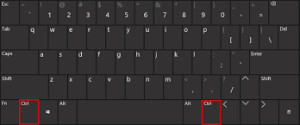
- Location: Bottom corners of keyboard
- Symbol: “Ctrl”
- Function: Used with other keys for special commands
- Use: Ctrl+C (copy), Ctrl+V (paste), Ctrl+S (save)
- Spacebar:

- Location: Longest key at bottom of keyboard
- Function: Creates space between words
- Use: Press between each word when typing
- Enter Key:
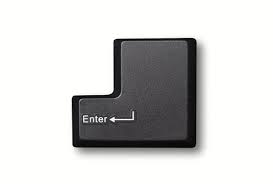
- Location: Right side of keyboard
- Symbol: “Enter” or curved arrow
- Function: Moves to next line, confirms commands
- Use: Start new paragraph, submit information
- Function Keys (F1-F12):
- Location: Top row of keyboard
- Symbols: F1, F2, F3… up to F12
- Functions: Different for each program
- Common uses: F1 (Help), F5 (Refresh)
- Shift Key:

- Location: Left and right sides of keyboard
- Symbol: “Shift” with up arrow
- Function: Makes capital letters, types symbols
- Use: Hold Shift + letter for capitals
- Caps Lock Key:

- Location: Left side, above Shift
- Symbol: “Caps Lock”
- Function: Makes all letters capital
- Use: Press once for ALL CAPITALS, press again to turn off
- Alt Key:
- Location: Next to spacebar
- Symbol: “Alt”
- Function: Used with other keys for special commands
- Use: Alt+Tab (switch programs)
- Delete Key:
- Location: Upper right area of keyboard
- Symbol: “Delete” or “Del”
- Function: Removes text after cursor
- Use: Delete mistakes in typing
- Backspace Key:
- Location: Upper right, above Enter
- Symbol: Arrow pointing left
- Function: Removes text before cursor
- Use: Erase mistakes while typing
Functions Summary:
- Tab: Makes neat spacing
- Ctrl: Special commands with other keys
- Spacebar: Spaces between words
- Enter: New lines and confirm actions
- Function Keys: Help and special features
- Shift: Capital letters and symbols
- Caps Lock: All capital letters
- Alt: Alternative commands
- Delete: Remove text ahead
- Backspace: Remove text behind
Practice Using Special Keys:
- Type your name using Shift for first letter
- Use spacebar between words
- Press Enter to go to next line
- Use Backspace to fix mistakes
First Term Computer Studies Lesson Notes for Other Topics

Computer Development: From Old To New
Explore lesson notes covering all topics.
Computer Development: How Computers Changed
Explore lesson notes covering all topics.
System Unit
Explore lesson notes covering all topics.
Hardware Devices
Explore lesson notes covering all topics.

Software Application
Explore lesson notes covering all topics.
Operating System II - Operating Systems We Use
Explore lesson notes covering all topics.

Operating System
Explore lesson notes covering all topics.

History Of The Computer
Explore lesson notes covering all topics.
Types of Computers
Explore lesson notes covering all topics.
What Is A Computer
Explore lesson notes covering all topics.

Use Of Special Keys On The Keyboard
Explore lesson notes covering all topics.
Exploration Of Files From The System
Explore lesson notes covering all topics.
Keyboard Shortcuts
Explore lesson notes covering all topics.

Introduction To Internet
Explore lesson notes covering all topics.

Networking
Explore lesson notes covering all topics.
Lesson Notes for Other Classes

Basic 3 Lesson Note
The complete lesson note to guide your studies.

Basic 4 Lesson Note
The complete lesson note to guide your studies.
Basic 5 Lesson Note
The complete lesson note to guide your studies.

Basic 6 Lesson Note
The complete lesson note to guide your studies.
JSS1 Lesson Note
The complete lesson note to guide your studies.

JSS2 Lesson Note
The complete lesson note to guide your studies.