
Adobe Photoshop – Basic 6 Basic Technology Lesson Note (Second Term)
Download this term · ₦1,000Lesson note at a glance
- Subject
- Basic Technology
- Class
- Basic 6
- Term
- Second Term
- Topic
- Adobe Photoshop
- Order
- Topic 3 of 25 this term
- Reading time
- 4 min
Learning Objectives
By the end of the lesson, pupils should be able to:
- Identify tools on the Photoshop toolbar
- Draw basic shapes using Photoshop
- Paint objects in Photoshop
Content
Introduction to Adobe Photoshop
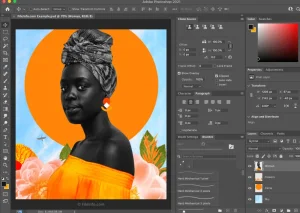
Adobe Photoshop is professional image editing and graphic design software used worldwide by photographers, designers, and digital artists.
Uses of Photoshop:
- Photo editing and retouching
- Graphic design
- Digital art creation
- Web design
- Logo creation
- Poster and banner design
The Photoshop Interface
Main Components:
- Menu Bar – Contains all commands
- Options Bar – Shows settings for selected tool
- Toolbar – Contains all tools
- Panels – Additional features (layers, colors, etc.)
- Canvas/Document Window – Work area
Identification of Tools on the Toolbar
SELECTION TOOLS:
- Move Tool (V) – Moves selections, layers, guides
- Rectangular Marquee Tool (M) – Selects rectangular areas
- Elliptical Marquee Tool – Selects circular/oval areas
- Lasso Tool (L) – Freehand selection
- Magic Wand Tool (W) – Selects similar colors
DRAWING AND PAINTING TOOLS:
- Brush Tool (B) – Paints with brush strokes
- Pencil Tool – Draws hard-edged lines
- Eraser Tool (E) – Erases pixels
- Paint Bucket Tool (G) – Fills area with color
- Gradient Tool – Creates color blends
SHAPE TOOLS:
- Rectangle Tool (U) – Draws rectangles/squares
- Rounded Rectangle Tool – Draws rectangles with rounded corners
- Ellipse Tool – Draws circles/ovals
- Polygon Tool – Draws multi-sided shapes
- Line Tool – Draws straight lines
- Custom Shape Tool – Draws preset shapes
TEXT AND EDITING TOOLS:
- Type Tool (T) – Creates text
- Crop Tool (C) – Crops images
- Eyedropper Tool (I) – Samples colors
- Zoom Tool (Z) – Magnifies view
- Hand Tool (H) – Moves canvas view
COLOR SELECTION:
- Foreground Color Box – Active drawing color
- Background Color Box – Secondary color
- Default Colors (D) – Resets to black/white
- Switch Colors (X) – Swaps foreground/background
Drawing with Adobe Photoshop
Creating a New Document:
- File → New
- Set dimensions (width and height)
- Set resolution (72 for screen, 300 for print)
- Choose color mode (RGB)
- Click Create
Drawing Basic Shapes:
Rectangle:
- Select Rectangle Tool (U)
- Choose fill color
- Choose stroke (outline) settings
- Click and drag on canvas
- Hold Shift for perfect square
Circle/Ellipse:
- Select Ellipse Tool
- Set colors
- Click and drag
- Hold Shift for perfect circle
Polygon:
- Select Polygon Tool
- Set number of sides in Options Bar
- Draw on canvas
Custom Shapes:
- Select Custom Shape Tool
- Choose shape from dropdown
- Draw on canvas
Painting Objects
Using Brush Tool:
- Select Brush Tool (B)
- Choose brush size (Options Bar)
- Choose brush hardness
- Select foreground color
- Paint on canvas
Brush Settings:
- Size: Controls brush diameter
- Hardness: Soft (0%) to hard (100%)
- Opacity: Transparency level
- Flow: Paint application rate
Using Paint Bucket Tool:
- Select Paint Bucket Tool (G)
- Choose fill color
- Click inside closed shape to fill
- Set tolerance for similar colors
Using Gradient Tool:
- Select Gradient Tool (G)
- Choose gradient style (Options Bar)
- Click and drag across object
- Creates smooth color transition
Painting Techniques:
- Solid Fill:
- Select area or shape
- Edit → Fill
- Choose color
- Click OK
- Layer Painting:
- Create new layer for each element
- Paint on separate layers
- Easier to edit later
- Color Adjustment:
- Use Eyedropper to sample colors
- Adjust foreground/background colors
- Use Color Picker for exact colors
Practical Exercise:
Draw and Paint a House:
- Rectangle for house body (paint brown)
- Triangle for roof (paint red)
- Rectangles for windows (paint blue)
- Rectangle for door (paint dark brown)
- Circle for sun (paint yellow)
- Grass using Brush Tool (green)
Tips for Beginners:
- Save work frequently (Ctrl+S)
- Use layers for organization
- Undo mistakes (Ctrl+Z)
- Experiment with different tools
- Practice regularly
- Watch tutorials for advanced techniques
Keyboard Shortcuts:
- V = Move Tool
- B = Brush Tool
- E = Eraser Tool
- T = Type Tool
- U = Shape Tools
- Ctrl+Z = Undo
- Ctrl+S = Save
- Ctrl+N = New Document
Multiple choice exercise – week 2
BASIC SCIENCE
- What percentage of air is nitrogen?
- a) 21%
- b) 78%
- c) 50%
- d) 100%
- Air pressure is measured using a:
- a) Thermometer
- b) Barometer
- c) Ruler
- d) Scale
- Which property allows pneumatic tools to work?
- a) Air is invisible
- b) Air is compressible
- c) Air has smell
- d) Air is heavy
PHE 4. How many players are on a hockey team?
- a) 5
- b) 7
- c) 11
- d) 15
- The curved end of a hockey stick is called:
- a) Head
- b) Hook
- c) Handle
- d) Blade
- Which protective gear is mandatory in hockey?
- a) Helmet
- b) Shin guards
- c) Gloves
- d) Elbow pads
INFORMATION TECHNOLOGY 7. Adobe Photoshop is used for:
- a) Word processing
- b) Image editing
- c) Browsing internet
- d) Playing games
- The tool used to draw circles in Photoshop is:
- a) Rectangle Tool
- b) Ellipse Tool
- c) Polygon Tool
- d) Line Tool
- The keyboard shortcut for the Brush Tool is:
- a) B
- b) P
- c) R
- d) T
- To fill an area with color, you use:
- a) Eraser Tool
- b) Paint Bucket Tool
- c) Move Tool
- d) Zoom Tool
This term's Basic Technology topics
Basic 6 Second Term · 25 topics
- Air
- Hockey Game
- Adobe Photoshop
- Weather
- Table Tennis Game
- Adobe Photoshop Cont’d
- Movement
- Maintenance of Sport Facilities and Equipment
- Computer Networks
- Solar System
- Physical Fitness
Get Basic Technology as PDF and Word
Every week of Basic 6 Basic Technology, Second Term, formatted and ready to print. Ad-free, and the copy lock comes off.
Get this term Card, bank transfer, USSD or OPay
Basic 6 Basic Technology Lesson Notes for Other Topics
Air
Read the full lesson note.
Hockey Game
Read the full lesson note.

Weather
Read the full lesson note.

Table Tennis Game
Read the full lesson note.

Adobe Photoshop Cont'd
Read the full lesson note.
Movement
Read the full lesson note.
Maintenance of Sport Facilities and Equipment
Read the full lesson note.
Computer Networks
Read the full lesson note.
Solar System
Read the full lesson note.
Physical Fitness
Read the full lesson note.

Computer Networks Cont'd
Read the full lesson note.
Colours
Read the full lesson note.
Physical Fitness Cont'd
Read the full lesson note.
Computer Networks Cont'd
Read the full lesson note.
First Elements on Periodic Table
Read the full lesson note.
Lesson Notes for Other Classes
Basic 1 Lesson Note
The complete lesson note to guide your studies.
Basic 2 Lesson Note
The complete lesson note to guide your studies.

Basic 3 Lesson Note
The complete lesson note to guide your studies.
Basic 4 Lesson Note
The complete lesson note to guide your studies.
Basic 5 Lesson Note
The complete lesson note to guide your studies.
