Harmful Foods, Spread of Diseases, Launching of Microsoft – Basic 4 Basic Science Lesson Note (Third Term)
Download Lesson NoteLesson note at a glance
- Subject
- Basic Science
- Class
- Basic 4
- Term
- Third Term
- Topic
- Harmful Foods, Spread of Diseases, Launching of Microsoft
- Order
- Topic 5 of 7 this term
- Reading time
- 5 min
Harmful foods
Class: Primary 4
Duration: 30 minutes
Subject: Basic Science
Learning Objectives
By the end of this lesson, pupils will be able to:
- Define harmful foods
- Give examples of harmful foods
- Explain why these foods are dangerous
What are Harmful Foods?
Harmful foods are foods that can make us sick or damage our body when we eat them. These foods are not safe for our health and can cause serious problems.
Examples of Harmful Foods
- Spoiled/Rotten Foods
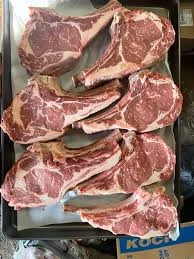
- Old meat that smells bad
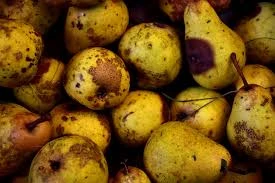
- Rotten fruits with bad spots
- Moldy bread with green or black spots

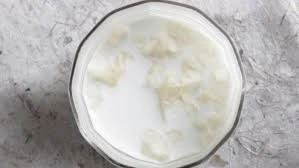
- Sour milk that has gone bad
- Stale rice kept for many days
- Dirty/Contaminated Foods
- Food covered with flies
- Unwashed fruits and vegetables
- Food prepared with dirty hands
- Food cooked in dirty pots
- Food sold in dirty places
- Poisonous Foods
- Wild mushrooms (some types)
- Cassava not properly prepared
- Green potatoes
- Unknown berries from the bush
- Food with chemicals or pesticides
- Too Much Junk Food
- Too many sweets and candies
- Too much soft drinks
- Too many biscuits and snacks
- Fried foods eaten every day
- Food with too much salt
Why These Foods are Harmful
- Spoiled foods can cause stomach pain and vomiting
- Dirty foods can give us germs and diseases
- Poisonous foods can make us very sick or even kill us
- Too much junk food can make us weak and unhealthy
How to Avoid Harmful Foods
- Always check if food is fresh
- Wash fruits and vegetables before eating
- Don’t eat food that smells or looks bad
- Buy food from clean places
- Don’t eat unknown plants or fruits
- Eat junk food only sometimes, not every day
What to Do if You Eat Harmful Food
- Tell an adult immediately
- Drink clean water
- Go to the hospital if you feel very sick
- Don’t eat more of the same food
Simple Activity
Look at pictures of fresh and spoiled foods and identify which ones are harmful.
Evaluation
- What are harmful foods?
- Give three examples of harmful foods
- Why should we not eat spoiled food?
- What should you do if you accidentally eat harmful food?
Spread of diseases
Class: Primary 4
Duration: 30 minutes
Subject: Physical and Health Education
Learning Objectives
By the end of this lesson, pupils will be able to:
- List ways diseases are spread
- Give examples of diseases spread by different agents
- Explain how to prevent disease spread
Ways Diseases are Spread
- Through Air
How it happens:
- When sick people cough or sneeze
- Germs float in the air
- We breathe in the germs
- The germs make us sick
Example Disease: Tuberculosis (TB)
- Affects the lungs
- Spreads when TB patients cough
- Causes bad cough and chest pain
- Through Food
How it happens:
- Eating dirty or spoiled food
- Drinking dirty water
- Eating food prepared by dirty hands
- Germs get into our stomach
Example Disease: Diarrhoea
- Causes loose, watery stool
- Makes stomach hurt
- Can make us very weak
- Through Insects
How it happens:
- Insects bite sick people or animals
- The insects carry germs
- They bite healthy people
- The germs enter our body
Example Disease: Malaria
- Spread by mosquito bites
- Causes fever and shivering
- Makes us feel very weak
- Through Body Contact
How it happens:
- Touching infected people
- Sharing clothes or personal items
- Skin touching infected skin
- Germs move from one person to another
Example Disease: Scabies
- Causes itchy skin
- Spreads by touching infected person
- Makes small bumps on skin
How to Prevent Disease Spread
For Air-spread Diseases
- Cover mouth when coughing or sneezing
- Stay away from sick people
- Keep rooms well ventilated
For Food-spread Diseases
- Wash hands before eating
- Eat fresh, clean food
- Drink clean, safe water
- Keep food covered
For Insect-spread Diseases
- Sleep under mosquito nets
- Remove stagnant water around house
- Use insect repellent
For Contact-spread Diseases
- Don’t share personal items
- Wash hands regularly
- Keep body and clothes clean
- Avoid touching infected people
Simple Activity
Practice covering your mouth properly when coughing or sneezing.
Evaluation
- Name four ways diseases can spread
- Which disease is spread through air?
- How is malaria spread?
- Give one way to prevent food-spread diseases
Launching Microsoft Excel
Class: Primary 4
Duration: 30 minutes
Subject: Computer Studies
Learning Objectives
By the end of this lesson, pupils will be able to:
- Know what Microsoft Excel is
- Launch Microsoft Excel on a computer
- Identify the Excel screen
What is Microsoft Excel?
Microsoft Excel is a computer program that helps us work with numbers and data. We use it to make tables, do calculations, and organize information in rows and columns.
Steps to Launch Microsoft Excel
Method 1: Using Start Menu
- Turn on the computer and wait for it to load
- Click on the Start button (usually at bottom left corner)
- Look for “All Programs” or “Programs”
- Find Microsoft Office in the list
- Click on Microsoft Excel
- Wait for Excel to open
Method 2: Using Desktop Shortcut
- Look for Excel icon on the desktop
- Double-click on the Excel icon
- Wait for Excel to open
Method 3: Using Search
- Click on Start button
- Type “Excel” in the search box
- Click on Microsoft Excel when it appears
- Wait for Excel to open
What You See When Excel Opens
- Title bar – shows “Microsoft Excel” at the top
- Menu bar – has File, Home, Insert, etc.
- Worksheet – large area with small boxes (cells)
- Rows – numbered 1, 2, 3, 4… going down
- Columns – lettered A, B, C, D… going across
- Cells – small boxes where rows and columns meet
Important Parts of Excel Screen
- Cell – each small box (like A1, B2, C3)
- Active cell – the cell you are working in
- Formula bar – shows what you type in a cell
- Sheet tabs – at the bottom (Sheet1, Sheet2, etc.)
Simple Activity
Practice opening Excel and finding cell A1 (first cell in top-left corner).
Evaluation
- What is Microsoft Excel used for?
- Name two ways to launch Excel
- What do we call the small boxes in Excel?
- How are columns named in Excel?
This term's Basic Science topics
Basic 4 Third Term · 7 topics
- Shape Construction with Wood or Metal, Athletics, Data Processing
- Types of Building, Relay Skills, and Information
- Vehicles, Volleyball and Information
- Food (Classes and Use), Pathogens and Diseases, and Microsoft Powerpoint
- Harmful Foods, Spread of Diseases, Launching of Microsoft
- The Digestive System & Disease Preventive Measures
- Human Body (The Mouth), Drug Education, and Search Programming
Third Term Basic Science Lesson Notes for Other Topics
Simple Machines
Read the full lesson note.
Simple Machines - The Safe Use of Simple Machines
Read the full lesson note.
Concept of Technology
Read the full lesson note.
Technology in Home - Electric Gadgets
Read the full lesson note.
Technology in Transportation - Land and Air
Read the full lesson note.
What Is Water Transportation?
Read the full lesson note.
Exploring Your Environment I
Read the full lesson note.
Exploring Your Environment II
Read the full lesson note.

Exploring Your Environment III
Read the full lesson note.
Animals - As Living Things (Characteristics)
Read the full lesson note.

Uses of Animals
Read the full lesson note.
Meaning and Characteristics of Plants
Read the full lesson note.

Meaning and Characteristics of Animals
Read the full lesson note.
Plants - As Living Things II
Read the full lesson note.
Uses of Plants
Read the full lesson note.
Lesson Notes for Other Classes

Basic 1 Lesson Note
The complete lesson note to guide your studies.
Basic 2 Lesson Note
The complete lesson note to guide your studies.
Basic 3 Lesson Note
The complete lesson note to guide your studies.
Basic 5 Lesson Note
The complete lesson note to guide your studies.
Basic 6 Lesson Note
The complete lesson note to guide your studies.
JSS1 Lesson Note
The complete lesson note to guide your studies.