
Word Processing II SS1 Data Processing Lesson Note
Download Lesson NoteTopic: Word Processing II
EXAMPLES OF WORD PROCESSOR:
A word processor is a computer software application that performs the task of creating and printing electronic documents. There are several types of word processors; they include Word Perfect, Word Star, MS Word, Loco Script, Ami-Pro, Word Craft, and WordPad etc.
- Microsoft Word: it is part of the Microsoft Office suite. Word consistently wins the title of the most widely word processing program worldwide. Besides basic word processing functions. Word also has desktop publishing capabilities. All the Microsoft Office programs can work together. An Excel worksheet can exist within a Word document. Word also has the power to easily merge with Excel lists or access database files.
- Corel WordPerfect: Word Perfect Suite contains several software programs essential for business and home users. The suite comes with WordPerfect Word, QuattroPro spreadsheet program, Corel presentations and WordPerfect mail.
- OpenOffice: The OpenOffice suite includes a word processor, spreadsheet, presentation program, database and graphics editor. As with Microsoft Office, the OpenOffice programs also work with one another.
The simplest programs that do word processing are known as text editors. These programs are designed to be small, simple and cheap. Almost all operating system comes with at least one text editor built in. Most editors save files in a special format called ASCII (American Standard Code for Information Interchange). Text editors are wonderful programs. The most common text editor is the notepad which comes with windows.
Others are:
- Edit which comes with a Disk Operating System (DOS).
- SimpleText which comes with Macintosh.
The major difference between a text editor and a word processor is that word processors have special features that are used to beautify texts. They have varieties of colours and other icons while the text editors can only accept text with little features such as changing fonts, colours, sizes, etc. The common type of text editor is the notepad which comes with window systems.
CREATING A WORD DOCUMENT
Click on the start icon to display the start icon to display the start menu and then click on the Microsoft Word icon. The program gives you an empty one to type.
HOW TO SAVE A DOCUMENT
- Start a new document in Word and type your text.
- Click the file in the top left-hand corner of the screen.
- From the menu, choose save as.
A ‘Save As’ dialogue box will come up. It will show the folder where you will be saving.
- Type in the name of your document and click save.
NOTE: You can also save your document using the shortcut “Ctrl S”.
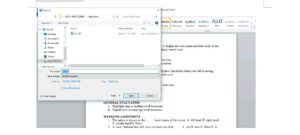
SAVING FORMATS
Documents can be saved in different file formats depending on what purpose you intend to use it for.
Click on the down arrow to the right save in section of the dialog box, which will display a drop-down menu, choose the file format you want for your document. File formats include HTML, PDF, RTF etc.
OPENING MS WORD DOCUMENT
- On the menu bar, click the file and then click the open icon.
- Click the folder and the file you want to open.
- Click the file.
- Click open.
ASSIGNMENT
- Highlight steps in loading Word documents.
- Explain how to create an MS Word document.
- Highlight how to save a new document in MS Word.
- List two types of document format.

Third Term Data Processing Lesson Notes for Other Topics
Graphic Packages
Explore lesson notes covering all topics.
Web Design
Explore lesson notes covering all topics.
Internet
Explore lesson notes covering all topics.
Presentation Packages
Explore lesson notes covering all topics.
Marketing
Explore lesson notes covering all topics.
Safety Measures
Explore lesson notes covering all topics.
Computer Ethics
Explore lesson notes covering all topics.
Database Management System II
Explore lesson notes covering all topics.
Database Management System
Explore lesson notes covering all topics.
Spreadsheet
Explore lesson notes covering all topics.


Lesson Notes for Other Classes

JSS1 Lesson Note
The complete lesson note to guide your studies.
JSS2 Lesson Note
The complete lesson note to guide your studies.

SS2 Lesson Note
The complete lesson note to guide your studies.

SS3 Lesson Note
The complete lesson note to guide your studies.