
Presentation Packages SS2 Data Processing Lesson Note
Download Lesson NoteTopic: Presentation Packages

A presentation package is a computer software package that is used to display information usually in the form of a slide show.
Examples of presentation packages include:
- Microsoft PowerPoint
- Macromedia flash
- Windows movie maker
- Open Office
USES OF PRESENTATION PACKAGE
- As a slideshow
- In delivering multimedia lectures
- In writing a multimedia storybook
GETTING STARTED WITH POWERPOINT
Ways To Start PowerPoint
- Double-clicking the icon on the desktop.
- Using the Start menu
Ways to Create a New Presentation
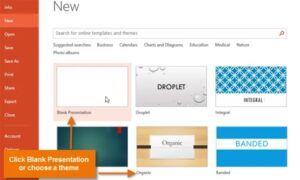
- Using Blank presentation
- Using Templates
- Auto Content Wizard
How to Insert Text
Placeholders are the dotted outlines that appear when you create a new slide. These boxes serve as placeholders for objects such as the slide title, text, chart, table, and clip art.
Just click to add text in any placeholder or double-click to add the specified object.
FEATURES OF A PRESENTATION PACKAGE
A presentation package has certain features such as:
- Creation of Slides: To create presentations, groups of slides are created. Presentation packages contain slides.
- Insertion of Pictures: Presentation packages allow users to insert pictures and objects into their presentation from external sources.
- Insertion of Video and Audio: Presentation packages allow users to insert video and audio into their presentation from external sources.
- Animation: This feature makes the presentation package different from other packages. It allows users to create motion effects on their slides.
- Slide Show: This feature allows users to view how the group of slides will be displayed. It displays the content to the audience during the presentation.
- Creation of Graphics: This feature enables the presentation package to provide users with graphics informed of shapes that can create an object from scratch.
- Creating organizational and other Types of Charts: Charts such as pie charts, bar charts etc. can be created easily with a presentation package.
USING PRESENTATION PACKAGE MICROSOFT POWERPOINT 2007
How a window is displayed depends on the size of the window. Resolution determines how much information your computer monitor can display. If you use a low resolution, less information fits on your screen, but the size of your text and images is larger. If you use a high resolution, more information fits on your screen, but the size of the text and images is smaller.
Microsoft Office Button: In the upper-left corner is this button. You can use the menu to create a new file, open an existing file, save a file, etc.
Quick Access Toolbar: This tool provides you with access to commands you frequently use. The save, undo and redo appear on the Quick Access toolbar.
Title Bar: It displays the name of the currently working presentation. PowerPoint names presentation start with Presentation1.
Ribbon: This is located near the top of the PowerPoint window, below the Quick Access toolbar.
Ruler: Rulers are vertical and horizontal guides. They are used to determine where you want to place an object.
Slides, Placeholders and Notes: Slides appear in the centre of the window to create your presentation. Placeholders hold the objects in your slide. You can use placeholders to hold text, clip art, charts, and more. You use the notes area to create your notes. You can refer to these notes as you give your presentation.
Status Bar, Tabs and View Buttons: The view buttons appear near the button of the screen. It is used to change between the Normal view, the slide sorter view, and the slide show view.
Zoom: This allows you to zoom in and zoom out on the window. Zooming makes the window larger so you focus on an object. Zooming out makes the object smaller so you can see the entire window. You can click and drag the vertical and horizontal splitter bars to change the size of your panes.
To open the MS PowerPoint application: Click on the START button, navigate to All programs, navigate to Microsoft Office, and click on Microsoft Office PowerPoint.
Creating a New Presentation: PowerPoint presentations can be created on slides. Use layouts to organize the content on each slide. PowerPoint has several slide layouts. You can add effects such as themes and backgrounds to slides. Themes are a set of colours, fonts, and special effects. Backgrounds add a coloured background to your slides.
Inserting the Contents: PowerPoint displays default slides in the slide pane when you open the package.
To Enter Text: Click and type the title of your presentation in the “click to add title area”, and “click and type a subtitle in the click to add subtitle” area.
To Insert Graphics or Pictures: Click in the “click to add title” or “click to add subtitle” area, press the enter key to bring the cursor down, from the ribbon bar, click on the insert menu, select the type of graphic options from clip art, select shapes, and pictures buttons from the menu.
To Add Clip Art Object: Click on the clip art button, in the search for textbox, type a general description of the graphics you want to insert, then click on the ‘Go’ button., click on any image from the list of displayed graphics to insert into the slide.
To Add Picture Object: Click on the picture button, and the insdialoguealog box is displayed, click on the location of the picture on the computer from the look-in options, click on the desired image and click on the insert command button. The picture is inserted into the slide as desired.
To Choose an Effect: Select the object you want to animate, choose the animation tab, click the custom animation button, the custom animation button pane appears, click the Add Effect button a menu appears, and choose the type of effect you want. A submenu appears, click the effect you want, and PowerPoint applies the effect.
To Add New Slides: Choose the Home tab, click the New slide button in the slides group, and the office theme dialogue box appears and displays several layout templates, click the layout you want, and the layout appears in the slide pane of the PowerPoint window. To add text, click inside the placeholder and type. To add a slide to your presentation, right-click the slide layout, and a menu appears, click layout and then click the layout you want, choose the Home tab, click the New slide button, and select from the options.
To Save a Presentation: Click on the office button, select save from the options displayed, select the drive you want to save the document, click on the file name, type the desired document name, and click on the save button.
To Run a Slide Show: Choose the slide show tab, click the “from the beginning button” in the start slide show group, and click the slide show icon on the bottom right corner of your screen. Your slideshow appears on your screen.
To Print Presentation: Click the MS Office button and a menu appears, choose print, click print preview, click the down arrow next to the print what field in the page setup group and then select what you would like to print. A preview appears on the screen, click the print and the print dialogue box appears, click the down arrow next to the colour/grayscale field to select whether you want your slides to print in colour, grayscale, or black and white, and click ok.
To Close the Presentation: click on the close button from the title bar.
Third Term Data Processing Lesson Notes for Other Topics
Graphic Packages
Explore lesson notes covering all topics.
Web Design
Explore lesson notes covering all topics.
Internet
Explore lesson notes covering all topics.
Marketing
Explore lesson notes covering all topics.
Safety Measures
Explore lesson notes covering all topics.
Computer Ethics
Explore lesson notes covering all topics.
Database Management System II
Explore lesson notes covering all topics.
Database Management System
Explore lesson notes covering all topics.
Word Processing II
Explore lesson notes covering all topics.
Spreadsheet
Explore lesson notes covering all topics.

Lesson Notes for Other Classes
Basic 1 Lesson Note
The complete lesson note to guide your studies.

Basic 2 Lesson Note
The complete lesson note to guide your studies.
Basic 3 Lesson Note
The complete lesson note to guide your studies.

Basic 4 Lesson Note
The complete lesson note to guide your studies.
Basic 5 Lesson Note
The complete lesson note to guide your studies.

Basic 6 Lesson Note
The complete lesson note to guide your studies.