
Spreadsheet SS1 Data Processing Lesson Note
Download Lesson NoteTopic: Spreadsheet
DEFINITION OF SPREADSHEET:
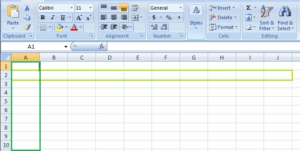
A spreadsheet is a collection of cells organized into rows and columns where data is stored and manipulated. The spreadsheet is known as a worksheet. A spreadsheet begins with row number one and column A.
A cell is a space in a worksheet formed by the intersection of a row and a column. Each cell can contain a number, text or formula. A cell can also reference another cell in the same worksheet, the same workbook or a different workbook.
Each cell has an address called Cell Reference e.g. A1, B3, C7 etc. combination of more than one sheet is referred to as a workbook. The worksheets can accept thousands of rows of data and columns in the form of fields. Active Cell is recognized by heavy border surrounding. It is the cell that is currently worked upon.
CONTENT OF SPREADSHEET
When you are setting out a spreadsheet, you have to enter values, labels and formulas.
- VALUES: Values are those numbers you already know before starting the spreadsheet operation. These values are inserted into cells of the spreadsheet.
- LABELS: Labels are words you enter to explain the values. You would not just enter a list of numbers without explanation. Putting labels next to each of the numbers makes it easier to check it through.
- FORMULA: Formulas are the mathematical equations you insert into the cells. Formulas are commands that instruct the computer on what to do.
USES OF SPREADSHEET
There are various uses of spreadsheets. It varies according to the intended purpose. Some of its uses are as follows:
- Spreadsheets are used for administrative functions.
- Spreadsheets are used for creating reports.
- They are used for the preparation of daily sales.
- They are used in computing school results.
- They are used for project budgeting control.
- They are used for drawing balance sheets.
- Excel can store and calculate the data as directed using existing data.
- A spreadsheet can be used for analysis and decision-making.
- It makes calculations much easier than working things out yourself.
EXAMPLES OF SPREADSHEET
There are various types of spreadsheet software which include:
- Microsoft Excel
- Lotus 1-2-3,
- Starview,
- Supercal etc.
- MICROSOFT-EXCEL
Out of the many examples of spreadsheet packages, Microsoft Excel is the most commonly used because of its friendly features. Microsoft Excel is part of Microsoft Suite. The suite comes in various versions such as 2000, 2005, 2007, 2010, 2015, etc.
MS- Excel is primarily used for analysis and calculation due to its flexibility. It has a lot of calculating features and mathematical formulas. Various kinds of mathematical calculations can be done using MS Excel. Microsoft Excel is a spreadsheet package used mainly for mathematical calculations and numerical analysis. Examples of calculations that can be performed using MS Excel include; addition, subtraction, multiplication, division, average, etc.
Formulas are often used to carry out calculations in MS Excel. The desired formula for any calculation must be preceded with an equal sign (=).
STARTING MS EXCEL
Starting Worksheet (Using Microsoft Excel)
- Click the Start button;
- Click All Programs;
- Click Microsoft Office;
- Click Microsoft Office Excel.
ARITHMETIC OPERATORS USED IN MS EXCEL
+ Addition
– Subtraction
/ Division
* Multiplication
^ Exponential
When creating a formula, you must know MS Excel’s order of operations. Certain operations are performed before others.
The term PEMDAS is the acronym to denote MS Excel’s order of operation.
P —— Parenthesis (Bracket)
E —– Exponential
M —– Multiplication
D —– Division
A —– Addition
S —— Subtraction
Calculations enclosed in parenthesis are performed first, followed by calculations involving exponentials. Multiplication and division operations are performed next because they are considered equal in importance. They are performed in the order in which they are encountered from left to right.
Addition and subtraction are performed last in the order in which they are encountered from left to right.
FORMULAS IN MS EXCEL
Examples:
Addition =C3+D3
Subtraction =C3-D3
Division =C3/D3
Multiplication =C3*D3
Average =AVERAGE(C4…C9)
LOADING EXCEL APPLICATION
Click on all programs, check the programs click on the Microsoft suites then click on the Excel application.
CREATING EXCEL DOCUMENT
Once Excel is open, you can enter data into a file by clicking on a particular cell, and then typing
text, numbers, or formulas. Your changes will be entered into the current cell.
- Press the tab to enter your data and move the active cell to the right of the current one.
- Press the enter key to enter your data and move the active cell to the next row, usually to the beginning of that row.
- Use the arrow keys to enter your data and move the active cell in the indicated direction.
- Press the end key, and right-arrow key to move to the last cell in a row.
ENTERING DATA IN A WORKSHEET
- Locate the cell where you want to enter data on the worksheet and click on the cell. For example point and click on cell A1.
- Type in your entry from the keyboard and notice the appearance of the entries in the formula bar with the cell address.
- Press the ‘Enter’ key.
EDITING DATA IN A WORKSHEET
Wrong entries may either be entirely re-typed or the particular cell/range of cells can be corrected.
- To retype:
Move the cell pointer to the cell to be corrected or re-type the entry and press ‘Enter’
- To correct only the mistake:
i. Move the cell pointer to the cell and double-click on the cell.
ii. Correct by inserting, deleting or retyping.
iii. Press ‘Enter’.
SAVING A WORKSHEET
- Saving for the first time:
i. Click on ‘Home’ button,
ii. Click the ‘Save As’ button and wait for a dialogue box to open.
iii. Type in your desired filename (i.e. the name of the document).
iv. Click the ‘Save’ button or press enter on the keyboard.
- Saving while working (after the first saving):
i. Click on the ‘save’ icon on the Quick Access toolbar or click on the ‘office button’ to open the menu. and click ‘save’ from the options.
RETRIEVING A SAVED WORKSHEET
Retrieving a worksheet means opening an already saved worksheet from its location on the computer. This is usually done to view, edit or update the worksheet.
- Load/start Microsoft Excel
- Click on ‘Office Button’
- Click the ‘Open’ option from the list and wait for a dialogue box to open.
- Navigate to the file you want to open and double-click on it.
Third Term Data Processing Lesson Notes for Other Topics
Graphic Packages
Explore lesson notes covering all topics.

Web Design
Explore lesson notes covering all topics.

Internet
Explore lesson notes covering all topics.
Presentation Packages
Explore lesson notes covering all topics.

Marketing
Explore lesson notes covering all topics.

Safety Measures
Explore lesson notes covering all topics.

Computer Ethics
Explore lesson notes covering all topics.
Database Management System II
Explore lesson notes covering all topics.
Database Management System
Explore lesson notes covering all topics.
Word Processing II
Explore lesson notes covering all topics.


Lesson Notes for Other Classes

Basic 1 Lesson Note
The complete lesson note to guide your studies.

Basic 2 Lesson Note
The complete lesson note to guide your studies.

Basic 3 Lesson Note
The complete lesson note to guide your studies.

Basic 4 Lesson Note
The complete lesson note to guide your studies.

Basic 5 Lesson Note
The complete lesson note to guide your studies.

Basic 6 Lesson Note
The complete lesson note to guide your studies.